
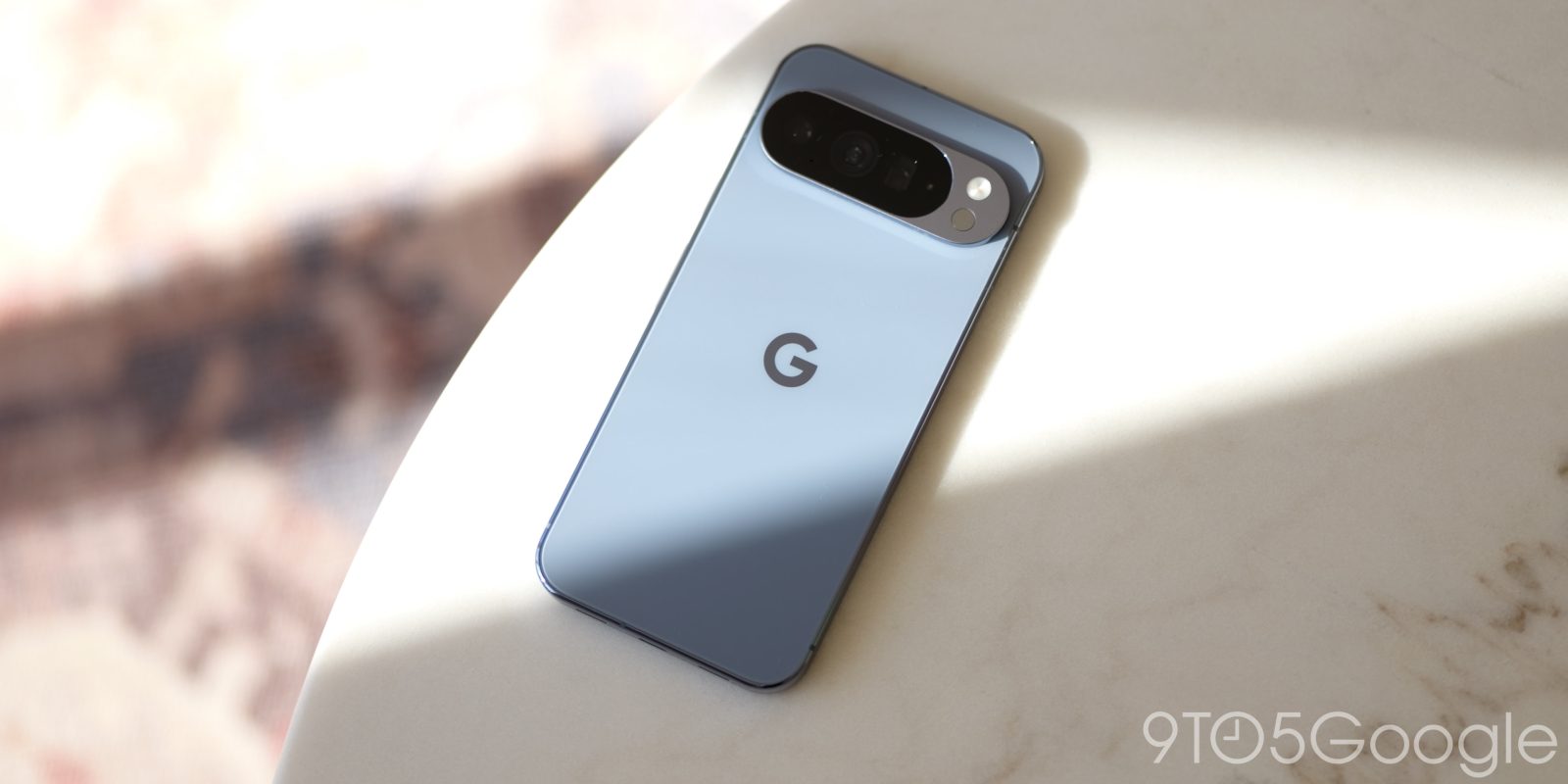
The Pixel series is one of the best Android devices available. Even though Android’s guided setup process does a fine job, there are a few settings we suggest you change before using your new Google Pixel.
Emergency SOS and Car Crash Detection
The very first setting I change for every Pixel I set up is to enable and configure Emergency SOS and Car Crash Detection. These two features are literally life-savers, and though you hope you never need to use them, they’re critical.
Emergency SOS works like this: Five clicks of the power button starts the SOS process. Once activated, it either requires a second confirmation or will launch straight into three things. An SOS will call for help, share your location with authorities, and begin recording a video.
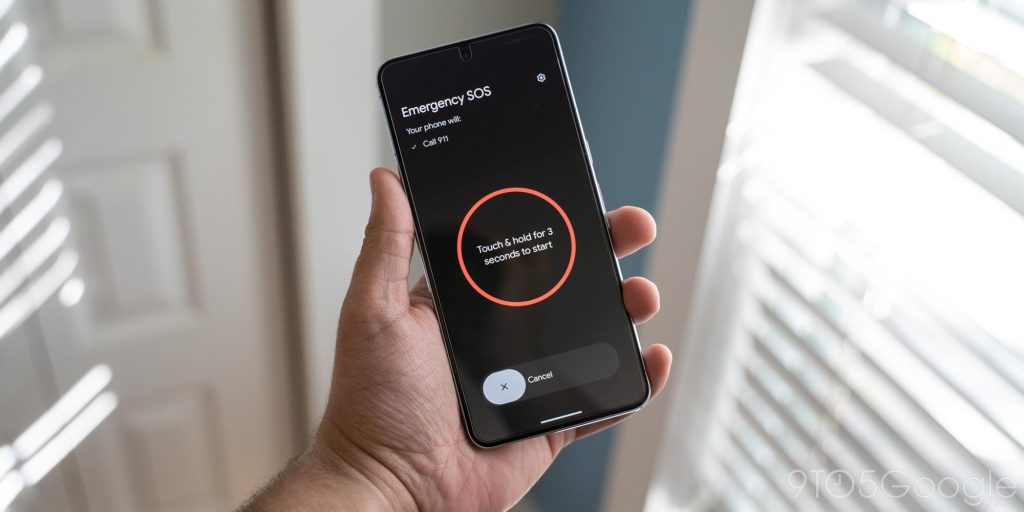
In a similar way, Car Crash Detection will call emergency services if your Pixel detects a crash. Optionally, the phone will share your locations with emergency contacts, too.
Both of these can be set up through the Safety app. Head to the app and follow the steps for each of these features. While you’re there, check out Safety Check and Emergency Sharing.
Clever Gemini features in the Phone app
With your new Google Pixel, Gemini finds its way through most of Android and the Google apps already loaded on your phone. The Phone app has a few of these features, and they’ve been some of the best features to set the Pixel series apart from any other Android device, and even iOS devices.
In the Phone app, head to settings through the hamburger menu in the top-left. There are a few tools that fall under the Call Assist feature set.
Take a look through these features and decide what you want to turn on, but we suggest several key options.
Scam Detection is a great tool to have turned on. It runs in the background during potential scam calls and will alert you if the content of the call sounds like a scheme to get your money or valuables.
Hold for Me and Direct My Call are also helpful for those who make business calls. Direct My Call makes navigating in-call menus much easier and allows for in-call transcripts for easier service. Hold for Me will additionally allow you to mute the business’s inherently bad hold music with alerts when the call center is ready to take your call.
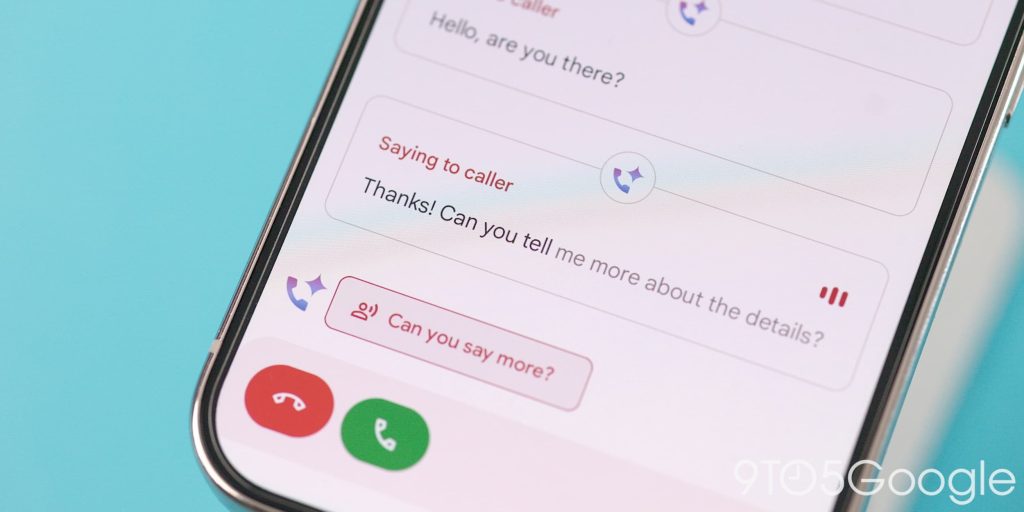
Call Screen is another big one, and one that separates the Pixel series from others. When suspicious or unknown calls come in, your Google Pixel will automatically answer with a request to the caller to identify themself. A transcript will show up on your phone so you don’t miss anything, and you can take the call as necessary. It’s a fantastic timesaver.
Lastly, Magic Cue. This one is part of the initial setup process, but it’s a good one to look into and configure. The feature will surface relevant content like emails and flight tickets during calls, if Gemini determines it’s needed. It doesn’t come up a lot for some, but it’s another nice tool to have in the bag.
Change those Quick Settings tiles
In Android 16, Google introduced a slightly improved version of the Quick Settings shade. Those tiles can now be adjusted in location and size.
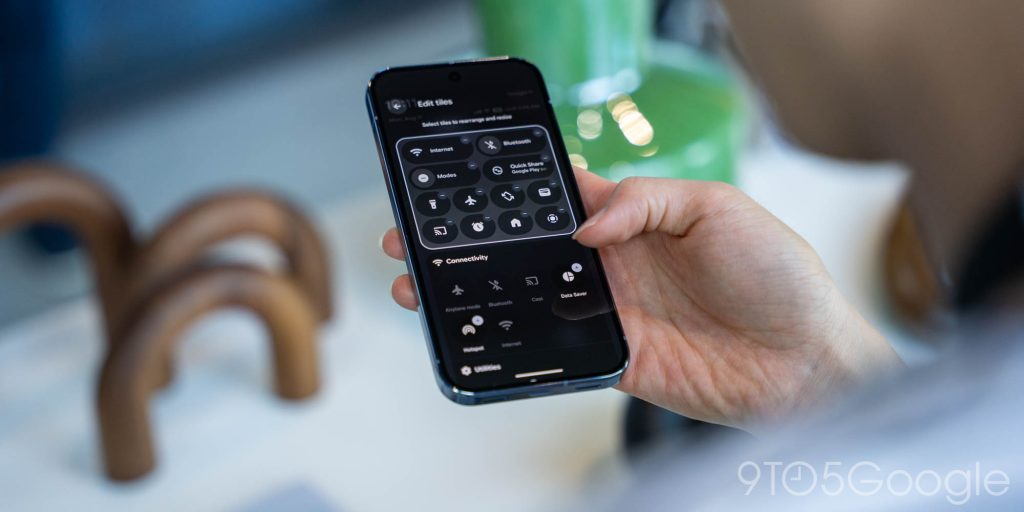
For instance, I prefer to enlarge the Wallet Quick Settings tile so I can see which card I’m using. The alarm tile is bigger for me too, because it can show more information. Most tiles don’t need to be stretched, but some adjustments are useful. It also makes the shade more appealing and adds a little depth.
Just tap the edit pencil in the Quick Settings shade, and hold and release on a tile to get the size slider.
Lock Screen Clock
If you tap and hold on the home screen, you can enter the Wallpaper & style page more easily. From there, swipe the home screen preview image over to reveal the lock screen preview. Scroll down and hit Clock.
This one can go overlooked as one of the many settings to change out of the box, but it makes a big difference in how the Pixel looks while locked. There are currently eight different clock types, and each has a very unique look, as is the Google way. What comes along with each clock style is a color picker. By default, the Pixel will try to match the clock’s color to the wallpaper. However, you can set a specific hue to give it more pop.
If you happen to choose the first clock style, you have the option to change the width and thickness. This allows for a more modern look if the other clock styles aren’t your thing.
Screen Protector mode
If you use a screen protector, you’re going to want/need to enable this.
Head into settings and under Display & touch, find touch sensitivity. Turn on Adaptive touch.
This feature lets the Pixel automatically adjust sensitivity to the phone’s environment, and that takes the presence of a screen protector into account. Without this feature, you might run into issues with the display reading input correctly.
Display resolution
While you’re in the display settings, check out Screen resolution. The Pixel 10 Pro defaults to 1080 x 2404, but it can go all the way up to 1344 x 2992. The jump is barely noticeable, but some like to have it one.
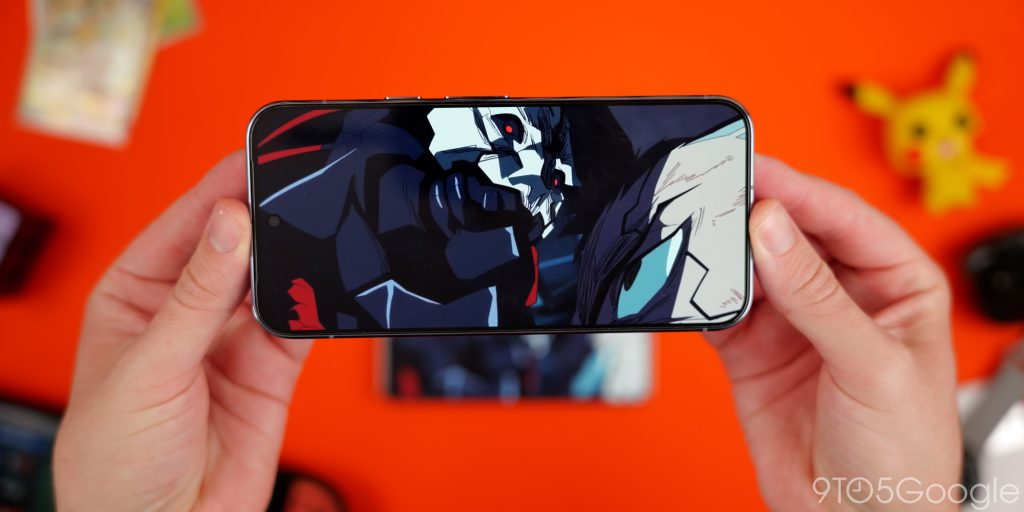
One thing to consider is the impact on battery performance. You’re not likely to get the same life out of the phone each day with resolution maxed out, unfortunately.
All in all, there are a lot of settings to play around with, but these few will get you started on your new Pixel phone.
If we missed one that you’d like to set up first, let us know what that is in the comments.


FTC: We use income earning auto affiliate links. More.




Comments