
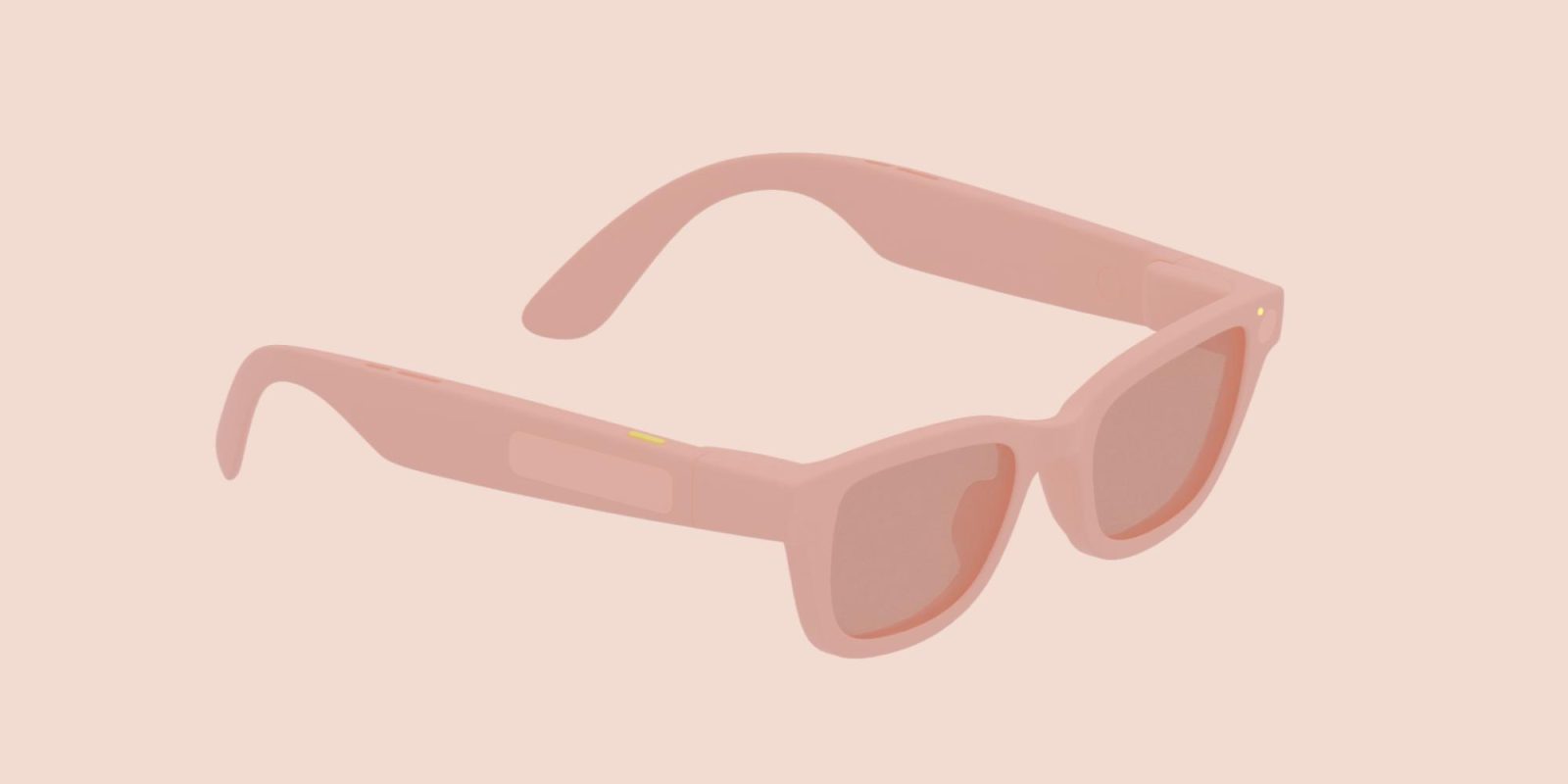
Android XR glasses are coming in 2026. Here’s what you can expect from the user interface and experience.
Since December, Google has offered design documentation and other development tools to let developers build Android XR apps for glasses. There are two form factors and they are officially called:
- AI Glasses feature speakers, a microphone, and the camera.
- Display AI Glasses add a small screen. Single display models are referred to as monocular, while dual screens are binocular and coming later.
You as the wearer can turn off the display at any time. As such, apps have to be fully functional when in audio-only mode.
Hardware
In terms of physical controls, Google is mandating a power switch/button, touchpad (2), and camera button (3) on all Android XR glasses. Models with screens will also have a display button (1) that has so far been placed on the underside of the stem.

The camera button is pretty straightforward with a tap taking a photo, while holding down captures video. Press again to end the recording, while a double press launches the Camera app. Similarly, the display button will “Wake/Sleep” the screen so you can go audio-only.
The touchpad allows for the following:
- Tap: Play / Pause / Confirm
- Touch & hold: Invoke Gemini
- Swipe
- Audio: Next / Previous / Dismiss
- Display: UI Navigation like scrolling lists, move focus, and click buttons.
- 2-finger swipe: Adjust volume
- Swipe down:
- Display: Back. This lets you return to the Home Screen or the previous screen when navigating inside apps.

Android XR glasses will also have two LEDs: “one for the wearer and one for bystanders.”
The LED provides visual feedback regarding feature and device states and should be considered when thinking about the holistic user experience. These are system UI indicators and can’t be changed.

Software
On Display AI Glasses, you will have a Home screen that Google equates to your phone’s lockscreen. At the bottom of this screen is the always-visible “system bar” that shows the time, weather, notifications, alerts, chips, and Gemini visual feedback.

Above that, you’ll see:
- Contextual, glanceable information without requiring any input
- Shortcuts to what you likely want to do next
- Multitasking abilities when multiple activities are running simultaneously

What can appear in the system bar
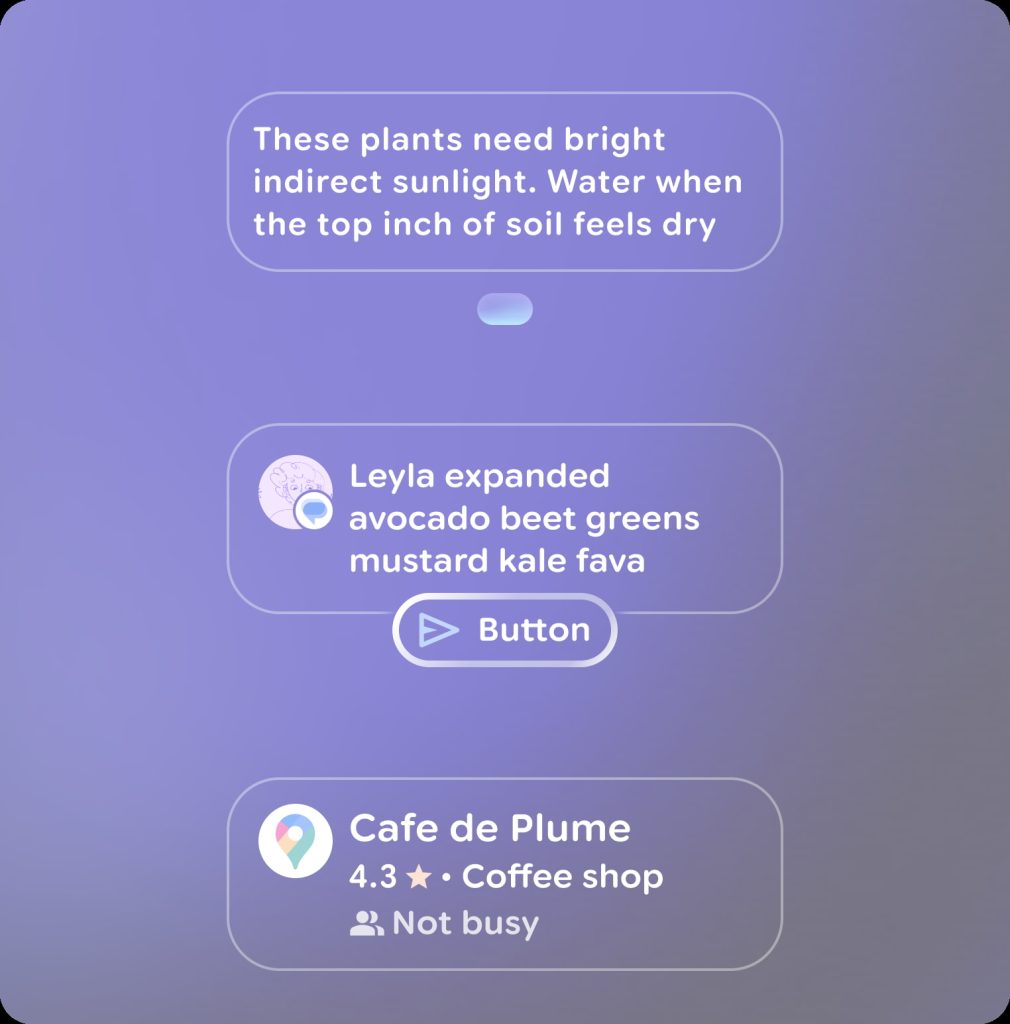
Notifications appear in pill-shaped chips and expand once in focus.

Finally, there’s the app view. “Glimmer” is the name of the design language on Android XR glasses.
Sharp corners are discouraged as they “can create visual pockets that lead the user’s eye into.” Instead, rounded corners “avoid drawing the user’s attention into component corners.”
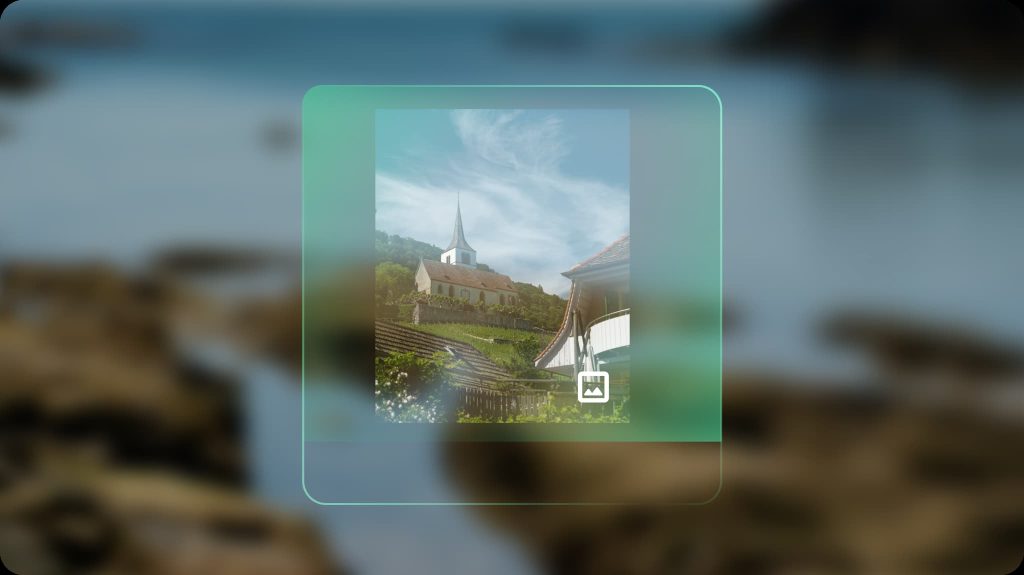
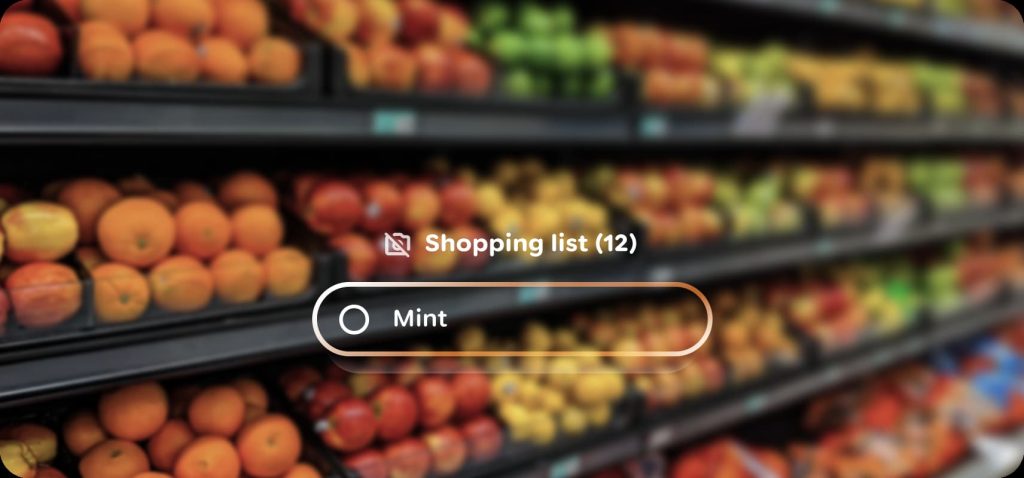
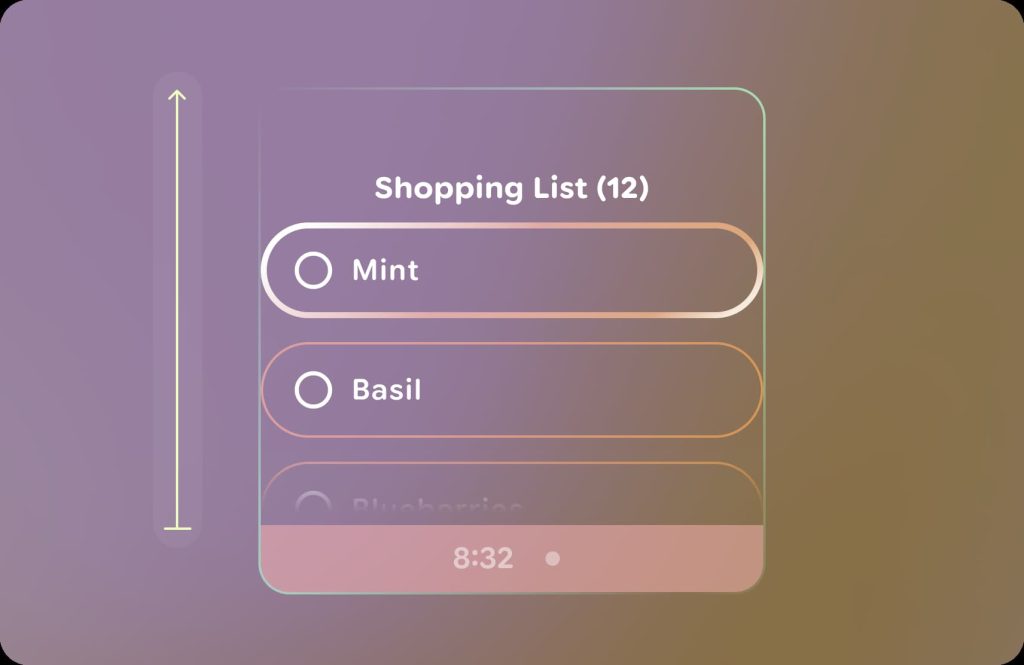
Apps very much have to take into account color when designing for optical-see-through displays. One interesting consideration is how “some colors use more power and generate more heat than others.”
Green is the least power hungry, blue is the most, when comparing colors of equal tone as seen on the right. Minimize the number of pixels you light up. The brighter the screen, the hotter the display gets. Don’t fill the screen with all white, as this can cause thermal mitigation.


Similarly, icons should be unfilled to avoid light bleed, or halation. Google recommends Material Symbols Rounded if you don’t need custom iconography.
Jetpack Compose Glimmer includes components optimized for Glasses:

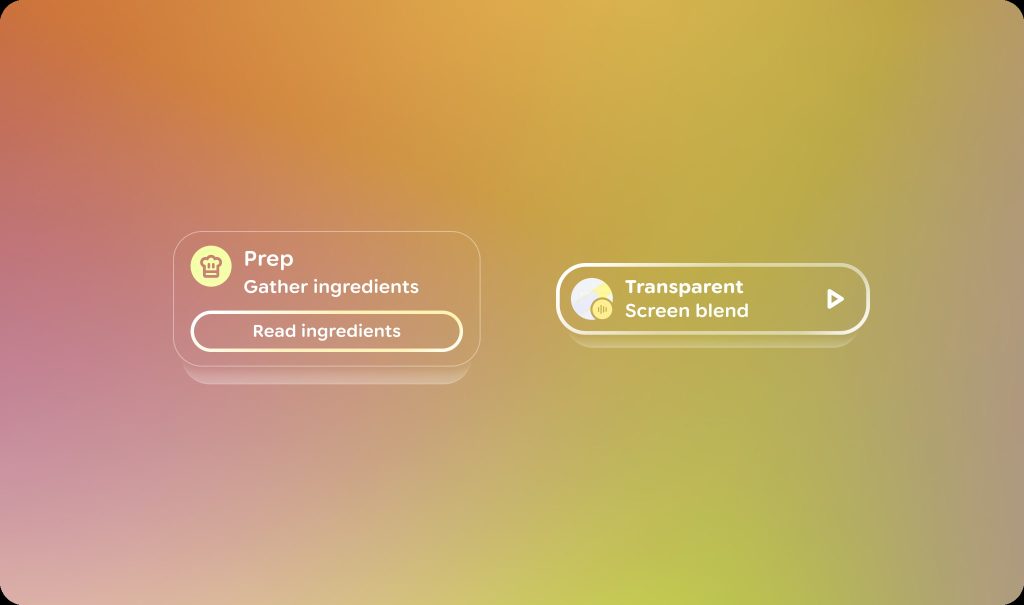
- Buttons
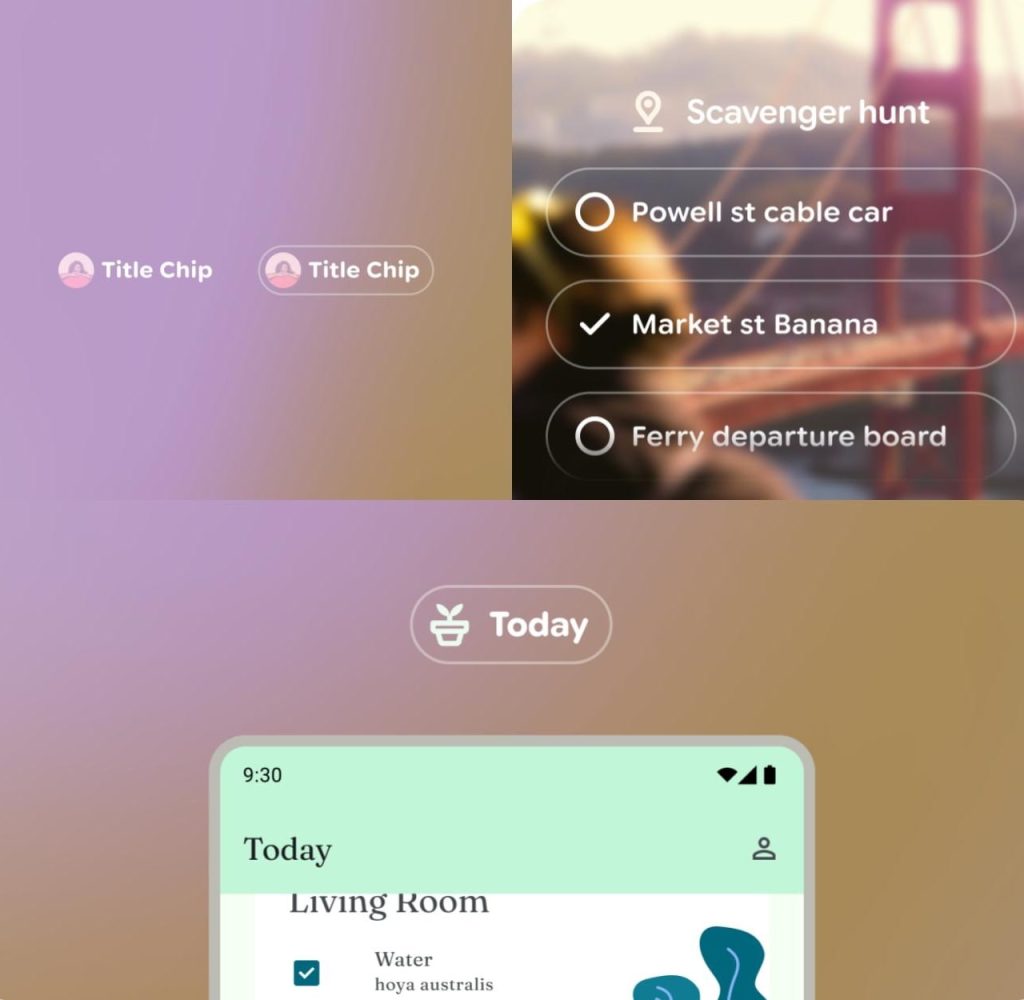
- Title chip: Showing a short title, name, or status, this is the equivalent of app/top bars on mobile.
- Cards
- Lists
- Stack: “collapsed list that only displays one piece of content at a time, in a stacked visual, such as a notification or card.”




FTC: We use income earning auto affiliate links. More.


Comments