
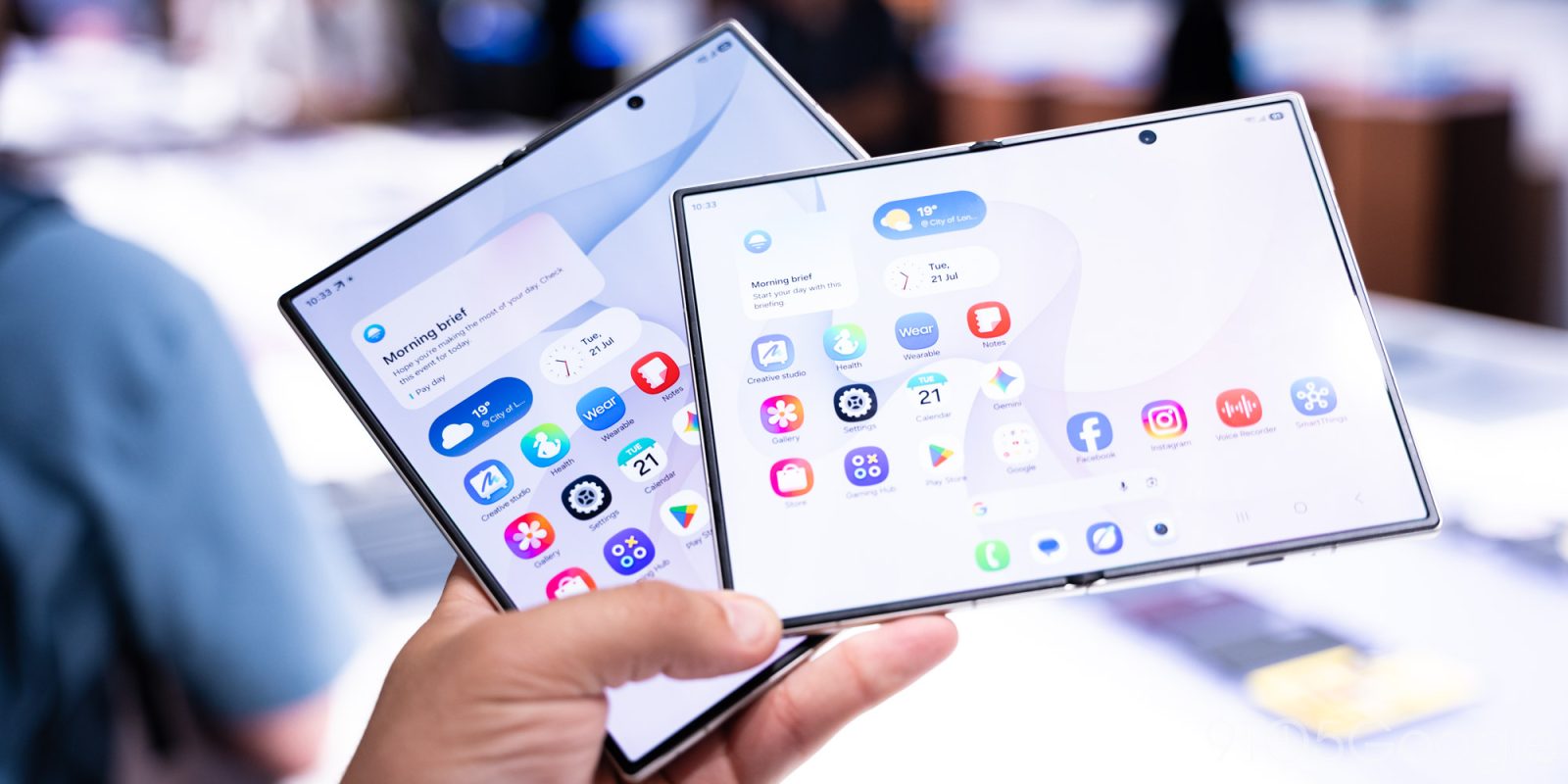
Samsung has quietly introduced a nice quality-of-life feature on the Galaxy Z Fold 8 series, where its new foldables can automatically unlock screen rotation when you use the inner display.
Screen orientation lock is something most of us probably have enabled as it can be pretty annoying to have the screen rotate unexpectedly – especially with Android’s handy little shortcut for temporarily changing the orientation.
However, this takes on a new meaning with foldables.
The inner display of a book-style foldable may need to be rotated more often, similar to a tablet. Whether it’s getting that extra width for video, playing a game, or anything else, you’re more likely to want to rotate. As such, many Galaxy Z Fold owners over the past few years have been setting up a routine to have the device unlock screen rotation whenever the device is opened up.
Now, that’s built into Samsung’s new foldables.
Spotted by a user on Reddit, the Galaxy Z Fold 8 (and Fold 8 Ultra) now automatically remember your screen orientation (rotation) lock setting on each display independently. So if you have it set to be locked on the outer display but unlocked on the inner display, the device will remember that as you switch between using the device open or closed.
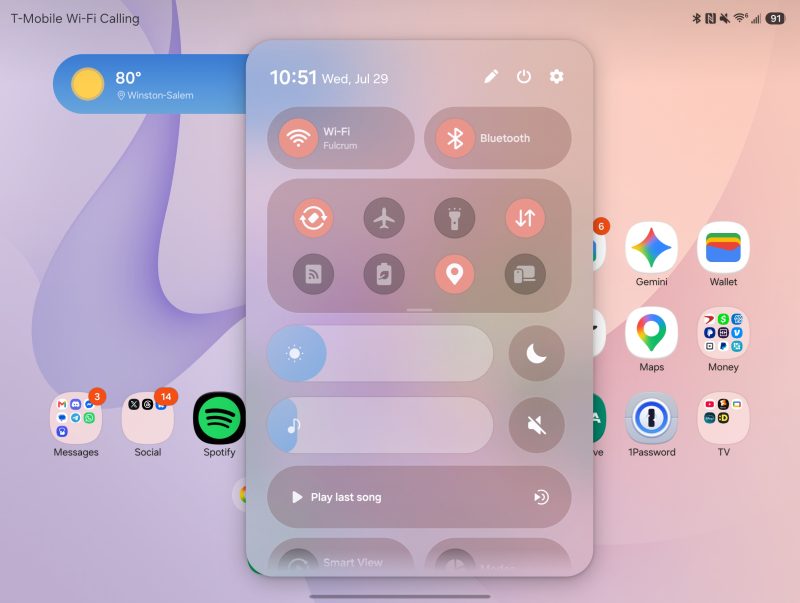
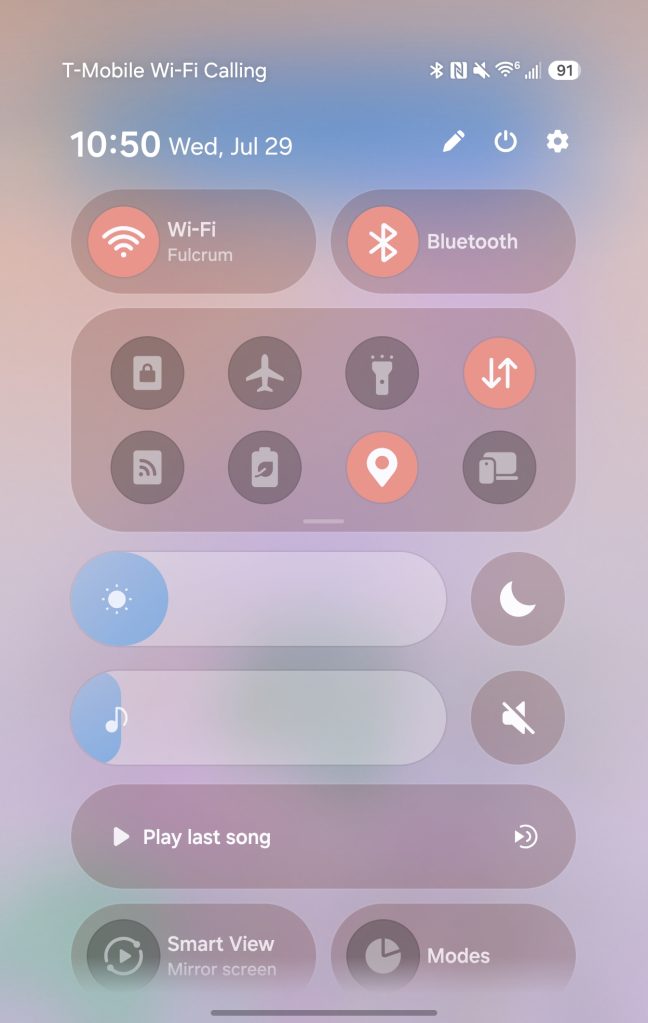
We’ve been able to confirm this is the case on our own Galaxy Z Fold 8 unit, and it’s not a new setting or anything. It’s just the default behavior of One UI 9 – presumably, this will also be ported back to prior generations in that Android 17-based update.
It’s a minor tweak but, as mentioned, it’s a great quality-of-life change.
Galaxy Z Fold 8 pre-orders are open now.
More on Samsung:
- Samsung has restocked Galaxy Z Fold 8’s popular ‘Pistachio’ color, shipping in August
- Galaxy Z Fold 8’s wide new design is reportedly selling faster than Samsung expected
- The Galaxy Z Fold 8 is Samsung preparing for battle, but is it enough?
Follow Ben: Twitter/X, Threads, Bluesky, and Instagram


FTC: We use income earning auto affiliate links. More.


Comments