
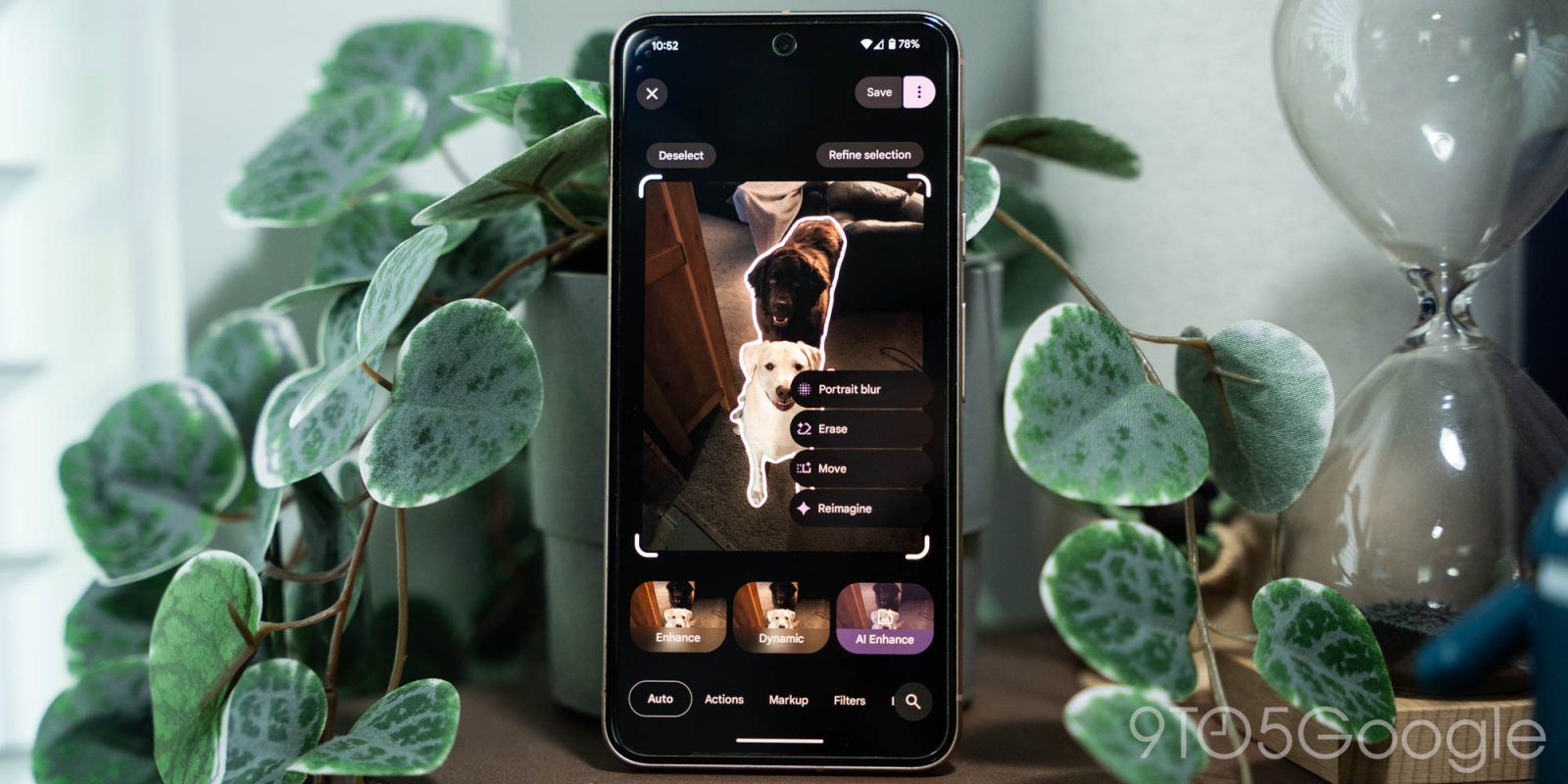
As announced earlier this year, Google Photos is now rolling out a redesigned editor on Android, which is a massive update, and the company is taking the time to explain how it all works for those who may be confused.
In a post on its forums, Google explains how to use the new editor redesign in Google Photos. The post explains that “things look a little different,” but “your favorite tools are still available.”
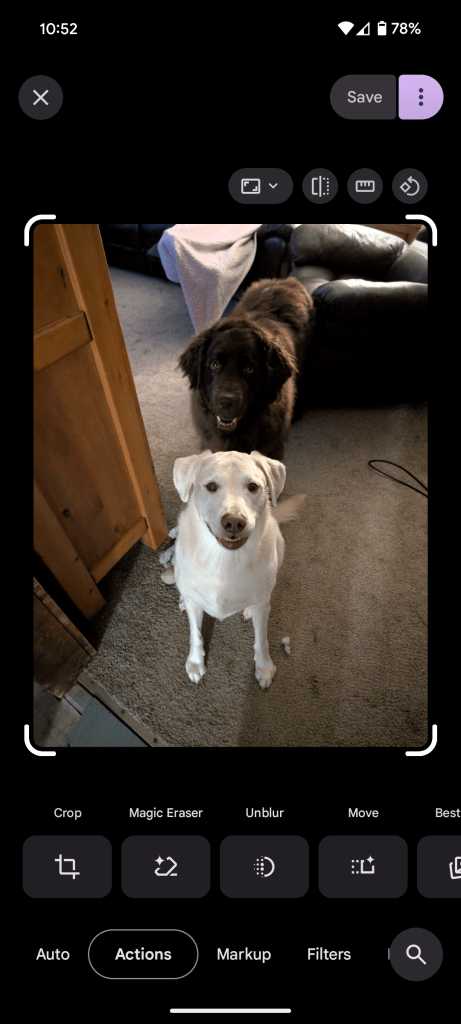
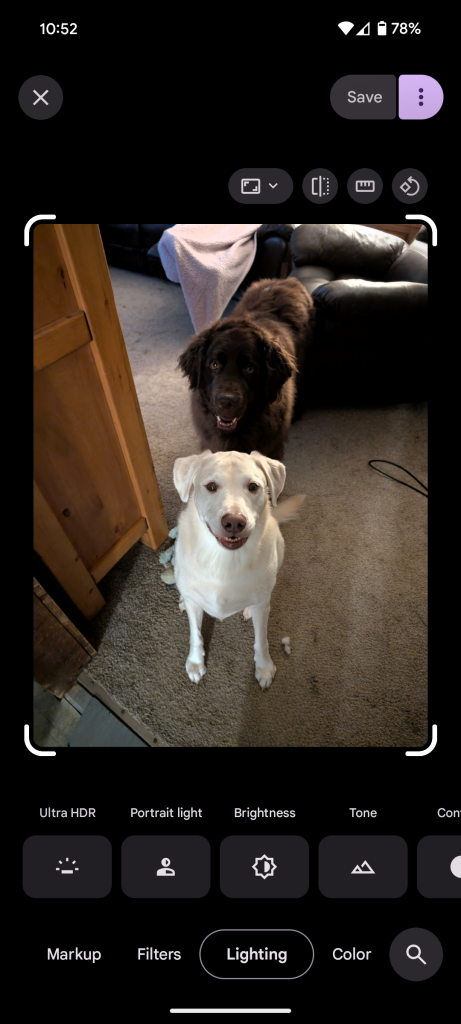
The post goes on to break down the new editor’s functions and where to find the tools you might need, which breaks down as follows:
- Actions: Crop, Magic Eraser, Unblur, Best Take, and more.
- Markup: Pen, Highlight, and Text.
- Filters: Sky and other classic filters.
- Lighting: HDR effect, Portrait light, Brightness, Contrast, and more.
- Color: Includes Saturation, Warmth, and more.
Those appear in the various tabs across the Photos editor and are now intergrated with Google’s various AI tools. Previously, many of the AI-powered functions appeared in separate sections of the app. As such, there’s a bit of learning curve with finding those functions.
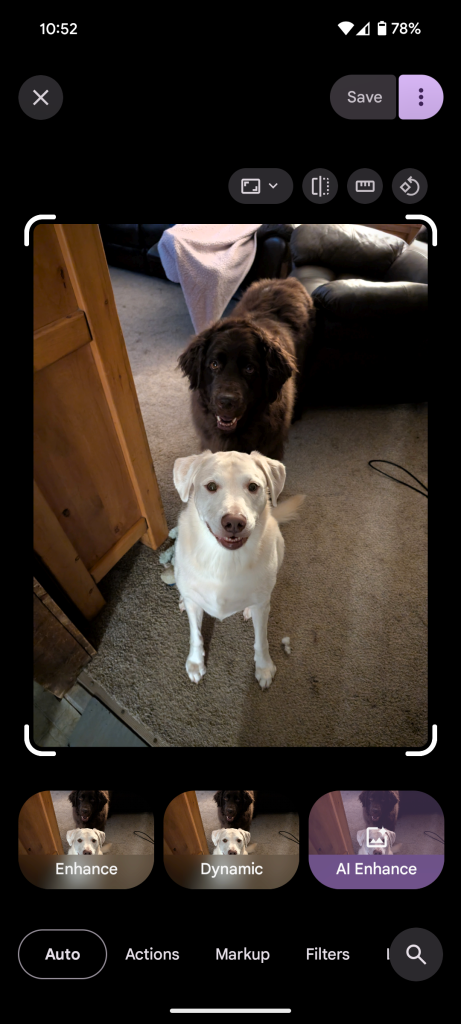
Speaking of AI, Google further highlights its automatic editing tools which use AI to boost a photo. These tools are what you’ll see by default, with “Enhance,” “Dynamic,” and “AI Enhance.”
Top comment by Carpentractor
I have seen the new AI editor make some really nicely balanced images, truly. However the new interface is janky and difficult to use in many aspects, especially the cropping tool. I also ran into what I hope was a bug when the AI editor was cropping an image for no reason. I'm hoping that it's not going to do that, I want it to work like "enhance", and "dynamic" and only adjust the colors. Also, I find when previewing the suggestions it shrinks the picture so small that you can't see it properly.
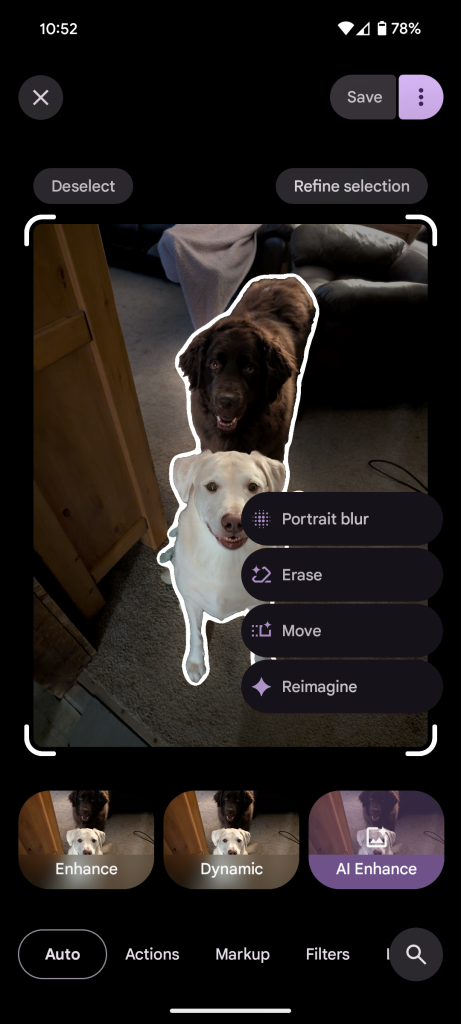
The new editor will further let you select subjects in a photo for more precise editing. Tapping the photo will select the subject, and you can then “refine selection” to narrow down the edits.
Google explains:
To select an area, tap, draw a circle around, or brush the area.
- To start over: Tap Deselect.
- To add or subtract objects from your current selection: Tap Refine selection, then tap Add selection or Subtract.
From the suggested tools or features, select an option.
- To move your selection: Tap Move.
- If you want to change the size of your selection, touch and hold, then pinch it with 2 fingers.
- To remove your selection: Tap Erase.
- Tool and feature availability can vary, so you might get different suggestions.
Google says that the new Google Photos editor is “now live” on Android devices, but the rollout isn’t complete just yet, as we’re only seeing the new editor live on some of our devices. Google adds that the new editor will come to iOS “soon.”
More on Google Photos:
- Google Photos redesign adds persistent M3 Expressive backup indicator
- Google Photos adding free photo-to-video, Remix, and Create tab
- Android’s photo picker is getting an overdue search function
Follow Ben: Twitter/X, Threads, Bluesky, and Instagram


FTC: We use income earning auto affiliate links. More.


Comments