
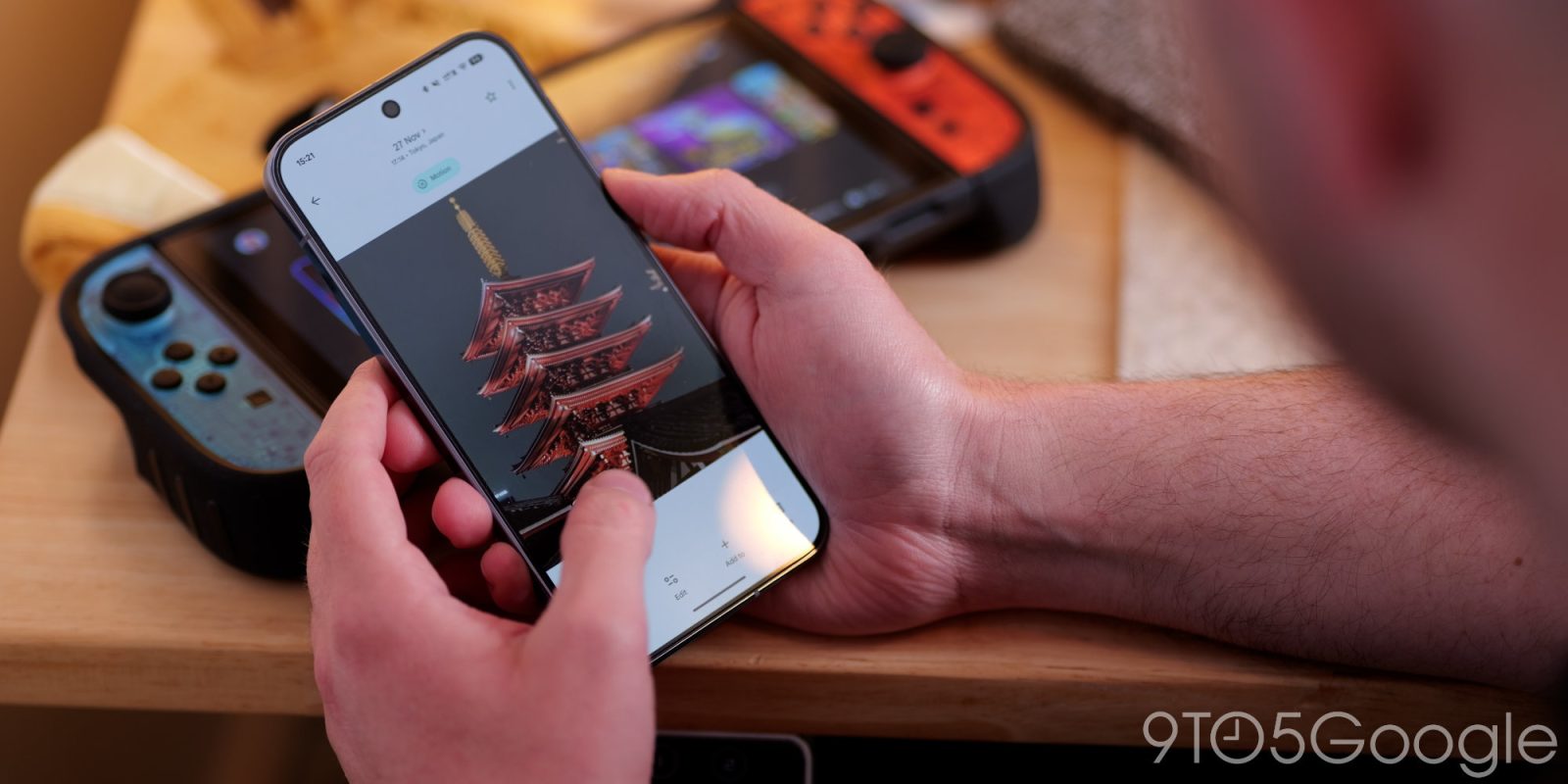
In a post, Google is reminding Photos users how the act of deleting a photo or video works across your various devices.
Google Photos is a super useful tool, but it’s also one with a lot of different layers of interaction. Like anything complex, it can get a tiny bit confusing. In the case of Photos, Google took to a community post earlier this week to clear up confusion on how the deletion of photos and videos works.
In short, deleting something from Photos can have three different results.
Firstly, there’s the scenario of deleting a photo from the Google Photos app when backup is turned off. This simply deletes the photo from the device, meaning it’s gone unless your device has a local trash bin (as is the case for modern Android devices).
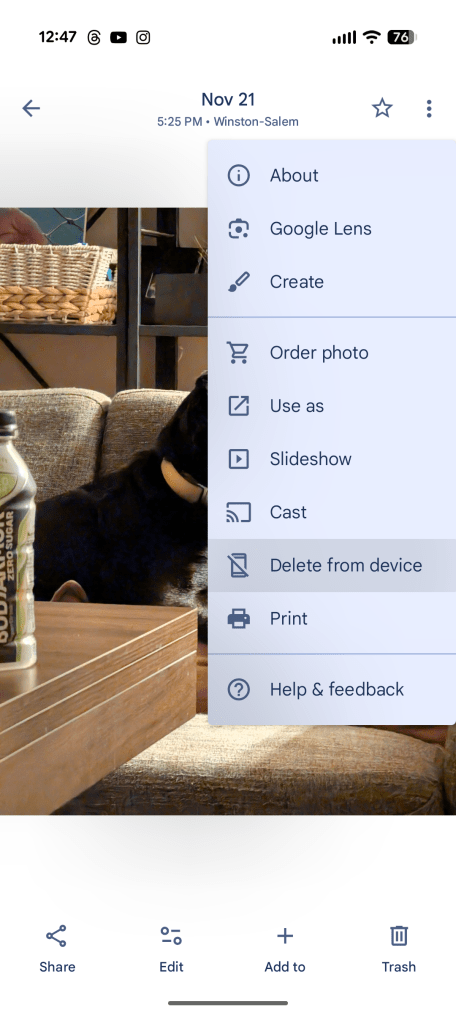
Next, there’s deleting a photo from the Google Photos app when backup is turned on. This action deletes the photo both from your device’s local storage and your cloud account. Interestingly, Google’s post doesn’t point out the “Delete from device” option found in the overflow menu which deletes only the local copy, leaving the backed-up version in your cloud storage.
Google explains:
- Action:
- Open the Google Photos app.
- Select a photo.
- Tap Delete
- Result:
- The photo is deleted from:
- Your Google Account (the cloud).
- Your phone’s local storage (if taken or saved locally to the device).
- Any other synced devices.
- You won’t find these items on the web anymore. They’re moved to your trash for 60 days.
- This is the simplest way to delete a photo from everywhere.

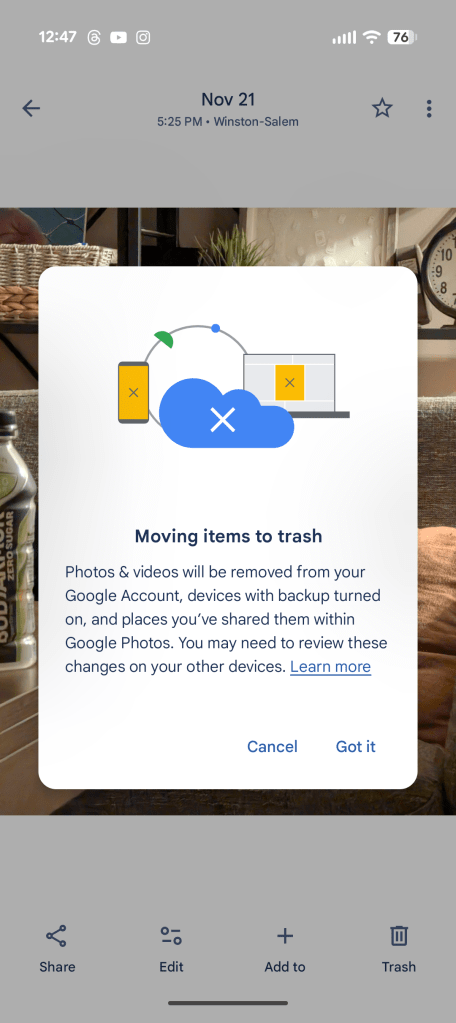
Finally, there’s deletion from the web.
This is where some users might end up confused. Deleting a backed-up photo from the photos.google.com website can only delete the version stored in the cloud. The local copy on your device won’t go away unless you go to that device and manually delete it using the “delete from device” option pictured above or the main “delete” button that removes both copies of the photo or video.
Again, Google says:
- Action:
- On your computer, go to photos.google.com.
- Select a photo.
- Tap Delete.
- Result:
- This deletes the cloud copy only and the original photo file remains in your phone’s local storage.
- You can still find the photo in the Google Photos app on your phone.
- The app displays the local copy stored on your device.
- To remove the photo from your phone, delete it separately.
- You can also use the “Free up space” feature.
If you’ve been using Google Photos across devices for years now, you probably understand how this works. But for those who may have been confused or have just never used Photos outside of their smartphone, Google’s guide does help clear up some confusion.
Similarly, Google also recently made a post to clarify to users that Takeout is a data export tool and can’t recover lost data, something the company says is “often” a point of confusion.
More on Google Photos:
- Google Photos ‘Remix’ rolls out to more countries, adds more style choices
- Google Photos rolling out video editor redesign on Android, iOS
- Google Photos’ perspective correction tool returns after disappearing months ago
Follow Ben: Twitter/X, Threads, Bluesky, and Instagram


FTC: We use income earning auto affiliate links. More.


Comments