
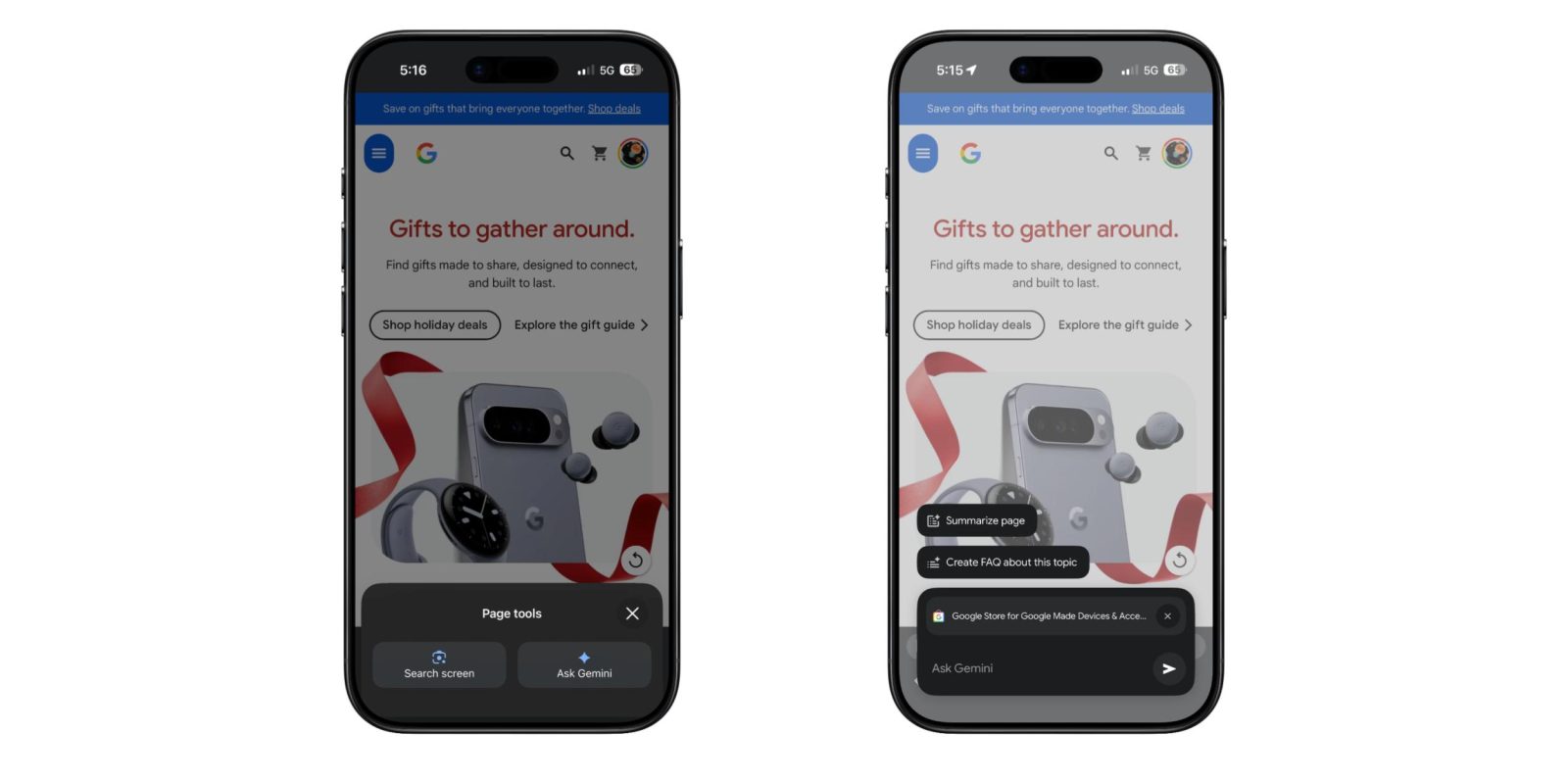
After teasing in September, Google Chrome for iOS is now more widely rolling out a built-in Gemini experience.
Once available, the icon at the left of the address bar changes from the Google Lens camera to a page icon badged by the Gemini spark. The “Page tools” sheet that slides up has two options: “Search screen” (Lens) and “Ask Gemini.”
Tapping brings an “Ask Gemini” window with a four color glow for a few seconds with the URL of your current page attached. Tap the ‘x’ to stop sharing the page. There are also shortcuts like:
- Summarize page: Tap to get key takeaways and insights that help you understand any topic.
- Create FAQ about this topic: Tap to get FAQs based on info from this page and similar sites.


Other example queries include:
- Explain a complex topic in a different way
- Help you test your knowledge of a new subject you’re learning
- Modify a recipe to meet dietary needs
- Compare information or make recommendations based on your preferences
The response floats above the page, which remains visible in the background. You can start a new chat from the top-right corner, while there’s an overflow menu that leverages Liquid Glass. Visually, Gemini in Chrome on iOS is basically the Android overlay design. There is no model picker.


At the moment, Gemini in Chrome on the iPhone and iPad is supported in the US when the browser’s language is set to English. You have to sign in to Chrome and this is not available in Incognito mode.
Important: Gemini in Chrome is not available to all users at this time. We’re gradually releasing Gemini in Chrome, so it might not be available to you just yet.
We’re seeing it more widely available with Chrome 143 for iOS. The release notes also highlight:
- Easily checkout using your biometrics instead of a CVC code when you shop online.
- Get the most out of Chrome with helpful tips on the new tab page.
- Stability and performance improvements.


FTC: We use income earning auto affiliate links. More.



Comments