
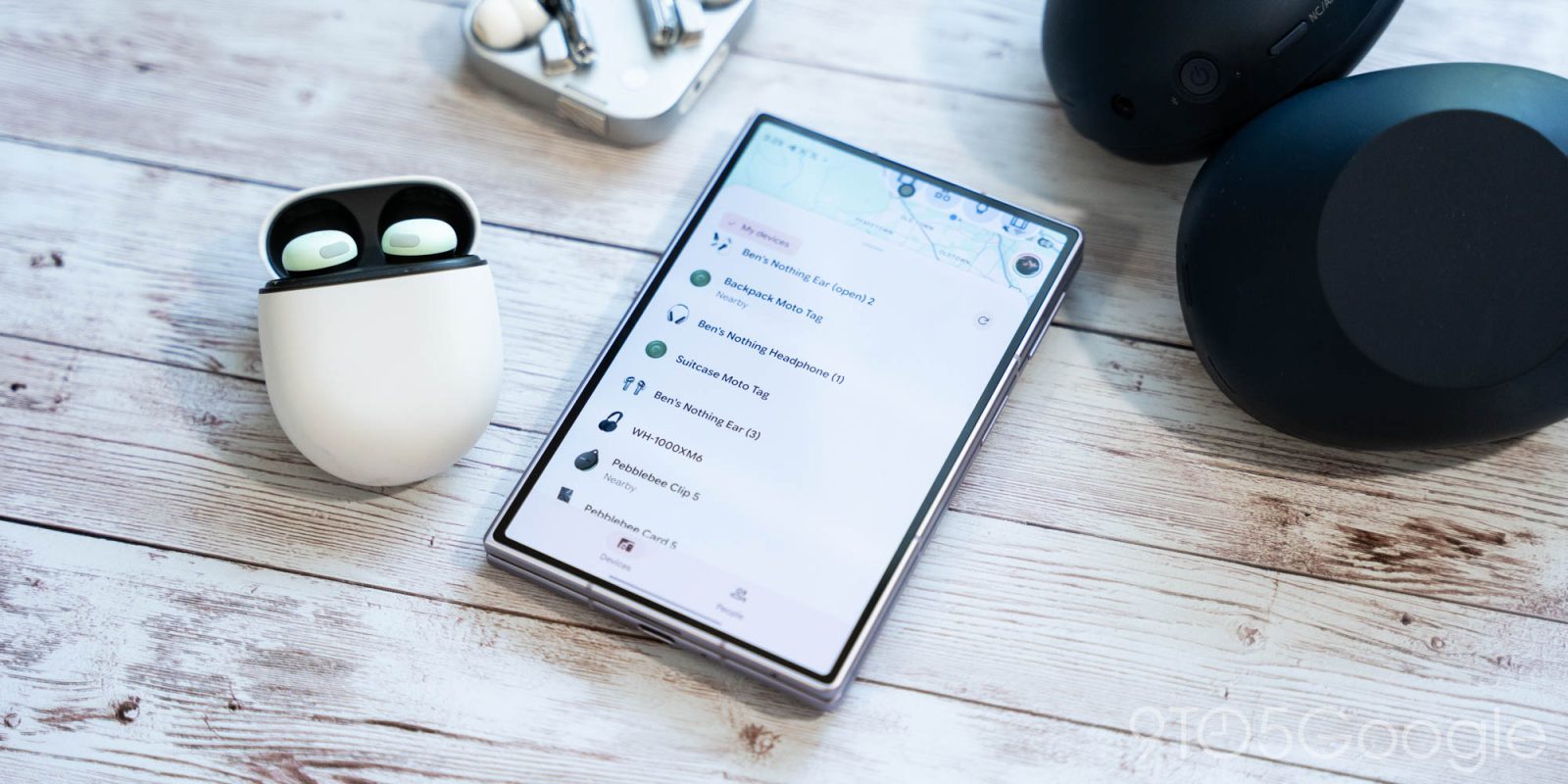
The Find Hub app on Android is super useful for tracking down lost gear through the use of trackers or just other Android devices linked to your Google account, but it can easily get bogged down by filling up with every pair of Bluetooth headphones you’ve ever used. Finally, Google will let you remove Bluetooth headphones & earbuds from the Find Hub app on Android.
As we mentioned back in 2024, you can remove devices from the Find Hub app. Smartphones, smartwatches, and tablets all disappear once they’ve been factory reset. Find Hub trackers (Moto Tag, Pebblebee, etc) can also be removed with a simple button in the per-device settings.
But headphones and earbuds would stick around seemingly forever.
Until now.
Top comment by Marius Maries
Finally I was able to remove the Ford sync from the car I rented 4 years ago 🤩🥳. Thanks!
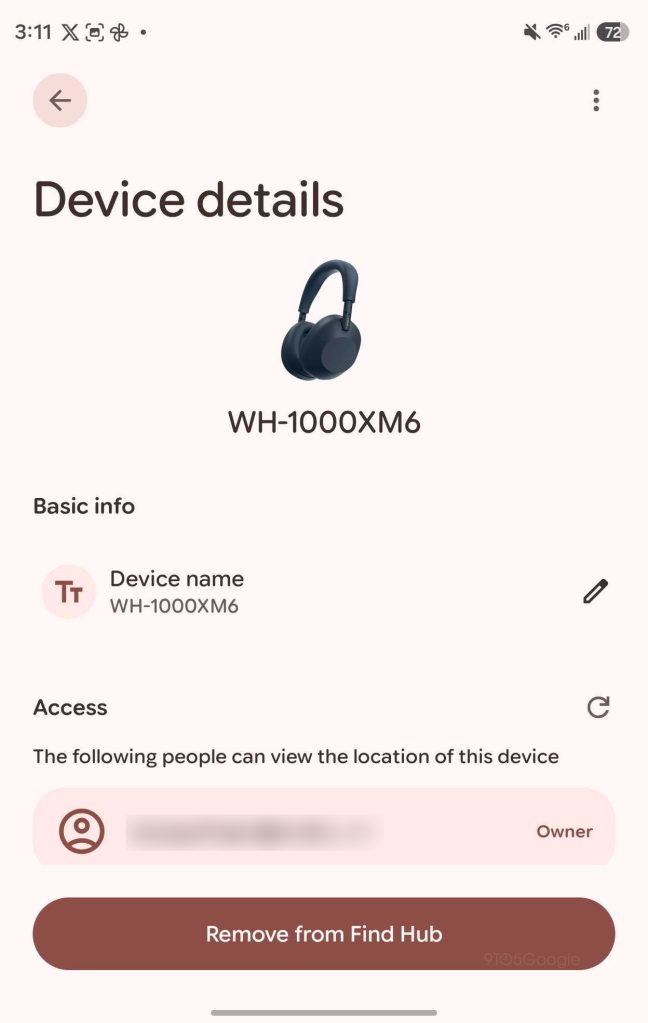
Recent silent updates to Find Hub for Android have finally added an option to remove Bluetooth audio devices from the app. The location varies slightly by device, though. On a pair of Sony WH-1000XM6 headphones, for instance, there’s a settings icon with a “Remove from Find Hub” shortcut at the bottom of the screen. But on an old pair of Sony LinkBuds, the “Remove from Find Hub” shortcut is on the first screen.
It’s unclear whether there’s any rhyme or reason to the layout of these menus, but the option is present on everything we checked – Pixel Buds, Nothing earbuds, JBL speakers, OnePlus Buds (RIP) – regardless of which menu layout was used.
An eagle-eyed Redditor highlighted the change over the weekend and, based on comments on the post, this is widely rolled out to users.

More on Find Hub:
- Anker’s Eufy finally starts selling its first Android Find Hub tracker for $34.99 [Video]
- Moto Tag 2 launches in the US with Find Hub UWB support, $20 for a limited time
- Google updates Find Hub app with location notifications
Follow Ben: Twitter/X, Threads, Bluesky, and Instagram


FTC: We use income earning auto affiliate links. More.


Comments