
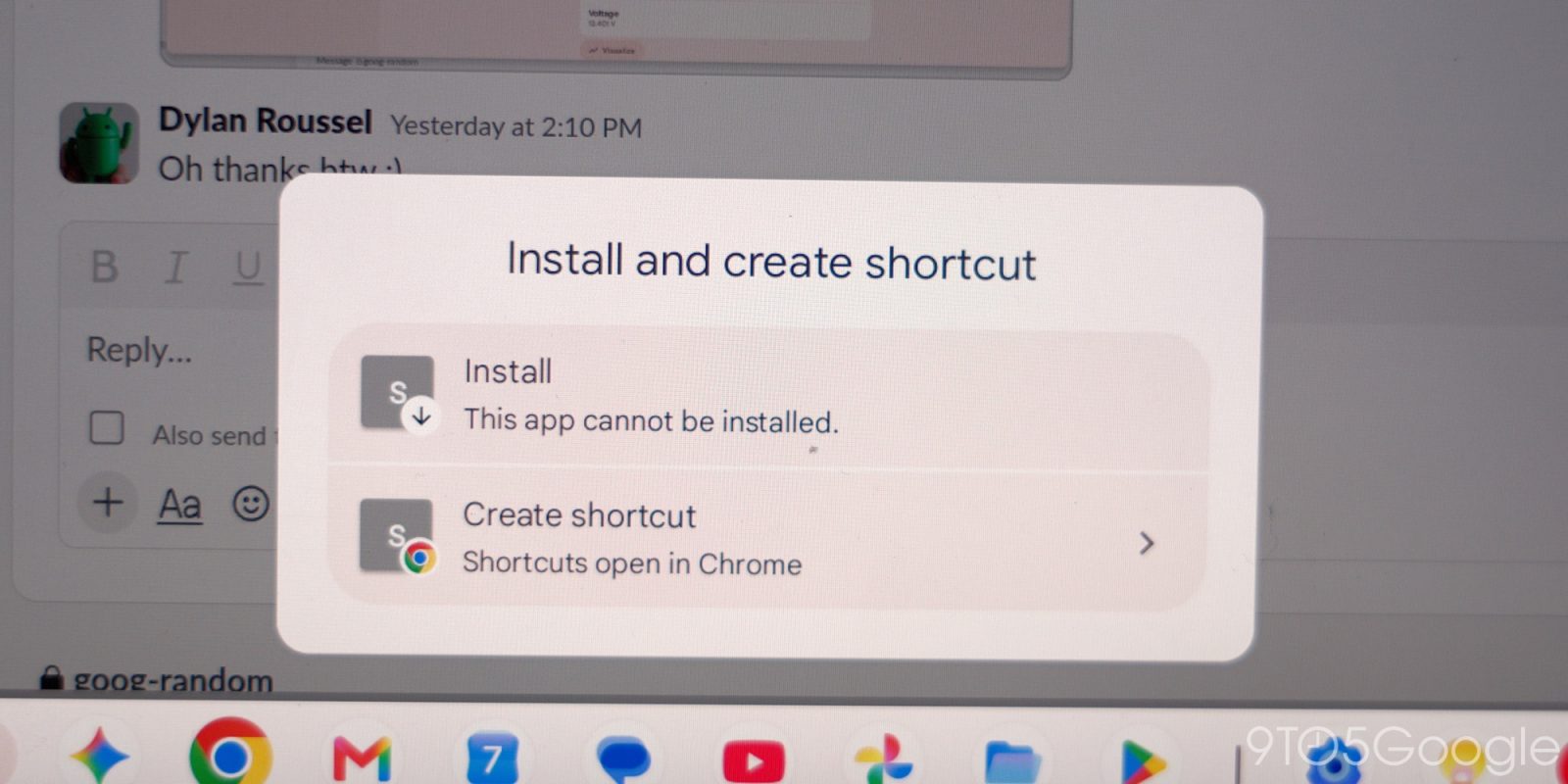
With Chrome 155, Googlebooks now better support web apps by allowing for expanded installation and system integration.
Previously, Chrome on Googlebooks (which is the Android version with desktop-level features) “only enabled the Install option for websites specifically configured as web apps.” As seen above, pages “without an installable web manifest” just opened as a browser tab.
Google reiterates today how that was a “conscious design choice,” but it heard the community feedback.
Chrome 155 this week lets you “manually install any webpage as an app directly from the Chrome browser so that it works as an app in its own window.” To do so:
- On your Googlebook, open Chrome.
- Go to a website you want to install.
- At the top right, open the Chrome menu > Save and share > Install and create shortcut…
- On some websites, at the top right of the address bar, select Install.
- Select Install.
- To complete the web app installation, follow the on-screen instructions.
Additionally, Google says: “If you previously created a browser-tab shortcut for a website prior to this update, remove the old shortcut first and re-install the page using the steps above.”
Meanwhile, installed web apps that appear in the app launcher can now be “pinned to your taskbar or homescreen and run in Chrome.” They will benefit from “shared Google Account login, cookies, site permissions, and installed browser extensions.”
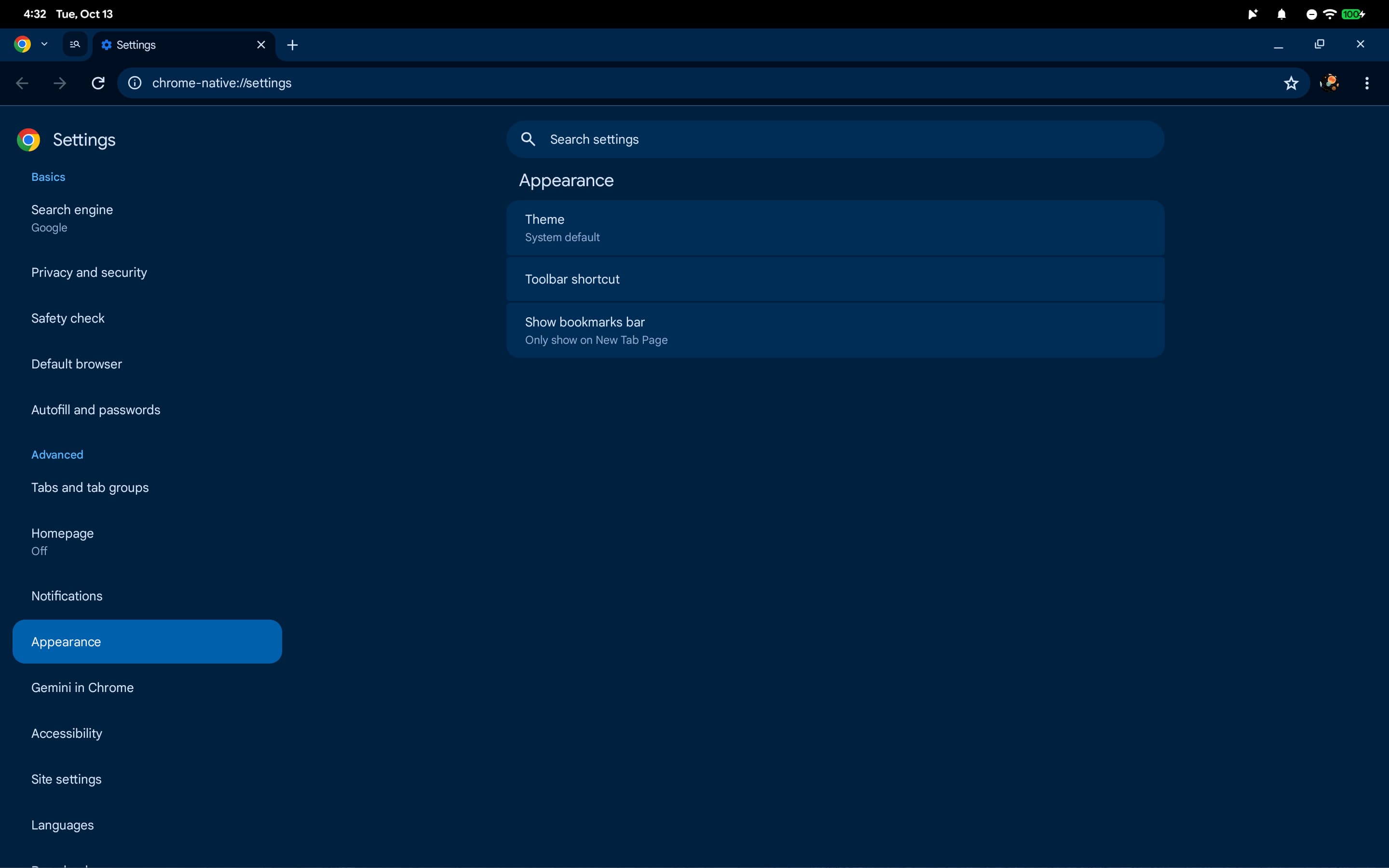
With this release, Chrome Settings is no longer a fullscreen interface, which has been the case on mobile but not desktop platforms. As a separate tab, “you can more easily reference a web page while tweaking settings.”
Version 155.0.8059.79 of Chrome is rolling out via the Play Store on Googlebooks. We’re seeing it on all our devices.


FTC: We use income earning auto affiliate links. More.


Comments