

Google says it’s saving files and media uploaded during searches in user search history to train AI and improve the experience after announcing the change last month. Search history will include pictures, screenshots taken with Circle to Search, and audio files used in voice searches, but you can disable that.
You may have seen a new pop-up appear while using one of Google’s search tools in Android. In our case, a card appeared during a routine Circle to Search interaction. The message states that any media used in Google Search interactions is now saved in the user’s Search Services History.
We covered this announcement in May, though it seems some are now seeing a new message explaining Google’s new Search Services policy.
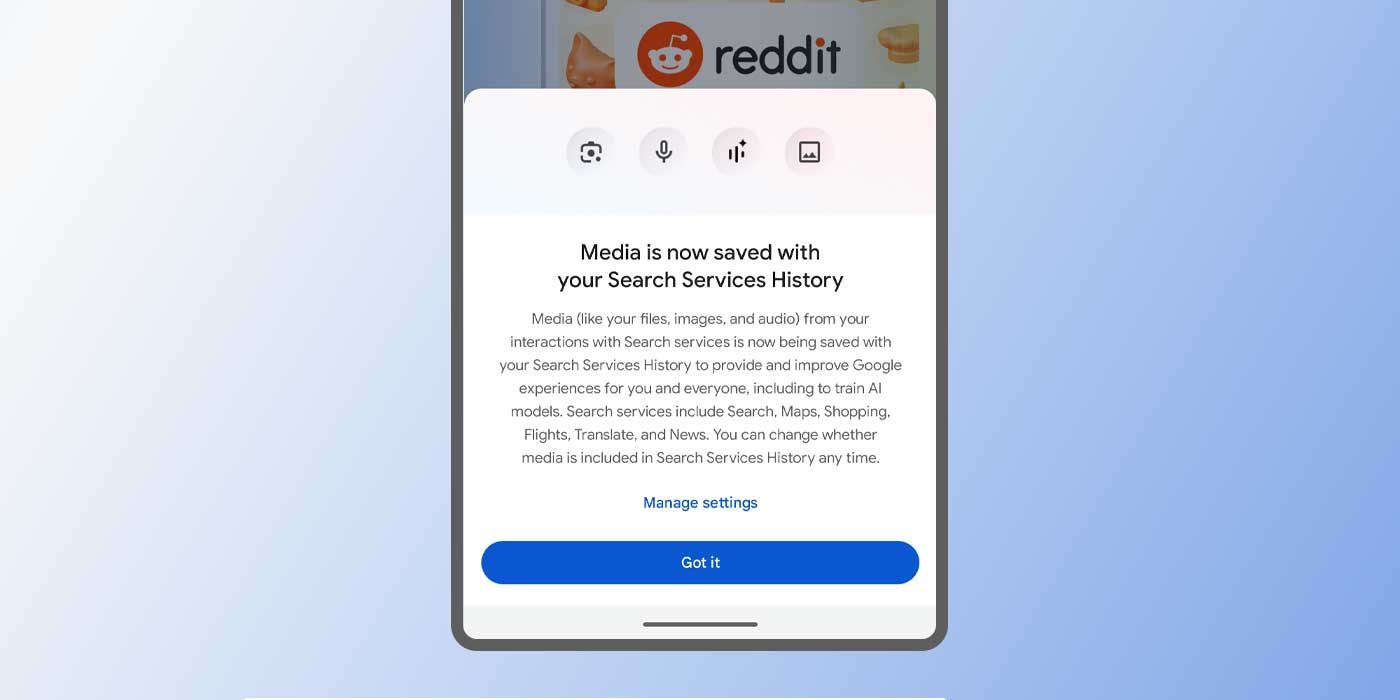
Of the main media types Google intends to keep on hand, it lists files, images, and audio. One can assume this includes screenshots used in Circle to Search or Google Lens, considering this showed up after initiating the feature on a Pixel 10 Pro XL.
Whatever is visible on the screen is stored as a screenshot and saved in your Google Search media history. The same goes for audio used with Google Translate, pictures in Google Lens, or when identifying songs – a feature famously on-device only.
Google notes these files are now saved in Search Services History to “provide and improve Google experiences for you and everyone.” The sentiment finishes off with the intention to train AI models using the data collected, and that it will be stored for “up to 4 years.”
More information is available through Google’s official help page.
Your saved media in your Search Services History is used to tailor your Google experiences. For example, you can revisit your last Lens searches or continue a Live conversation about a song you heard.
Google uses AI models and other technologies to process your media and respond to you when you use features that rely on voice, audio, images, or files. This includes actions like when you search with your camera, ask a question by voice, or upload a document for translation.
Google also uses your saved media to develop and improve technologies that understand the world the way you do, like the AI models that power features like:
- AI Mode
- Lens
- Translate
- Search Live
- Voice and audio search
How to disable ‘save media’ in Search Services
There is a way to turn off the “save media” option in Google’s Search Services History. When that window appears, users can tap “Manage Settings” to see the full disclaimer. The bottom of that page has a button to disable the function. The downside to doing so is a potential lapse in Gemini’s memory. For example, you may not be able to ask about songs you previously tried to identify.
Alternatively, you can do the following:
- Head to myactivity.google.com.
- Click Search Services History.
- Next to Save media, uncheck the box to turn the feature off.
- Note: There’s also an option to set an auto-delete rule set and manually delete media saved previously.
If that box is left checked, Google will continue to use uploaded data for AI training, mainly. The company notes that data can make speech recognition more accurate and improve other models through Android and Google’s ecosystem.
However, disabling that feature means your uploaded images won’t be stored at all. In a way, the new policy is a little more reassuring that users have control over whether media is saved, as well as the option to delete without erasing an entire history of text data.


FTC: We use income earning auto affiliate links. More.





Comments