
Don’t ask us why, but some Android phones do not come with the best features enabled out of the box.
This is not for the hardcore Android fan, but sometimes we all forget to enable things when setting up a new phone or restoring an existing phone. I know that I always forget a few things and then get annoyed when things aren’t there or working as I expected, having made the switch to a new phone or even an old favorite.
Some of these functions may be limited to specific hardware or have different names. We’ll try our best to translate or customize for each major device maker where possible.
Table of contents
Notification history
One of the most useful features added to Android over five years ago still isn’t enabled by default on most phones. Notification history is great because it means if you missed something by accidentally swiping away or dismissing, you can scroll back and find out who or what sent you the device ping.
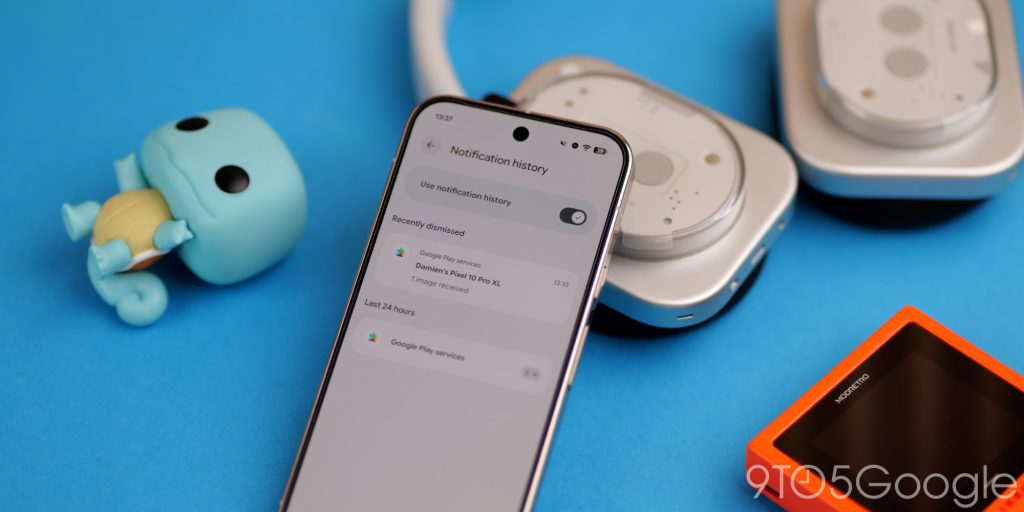
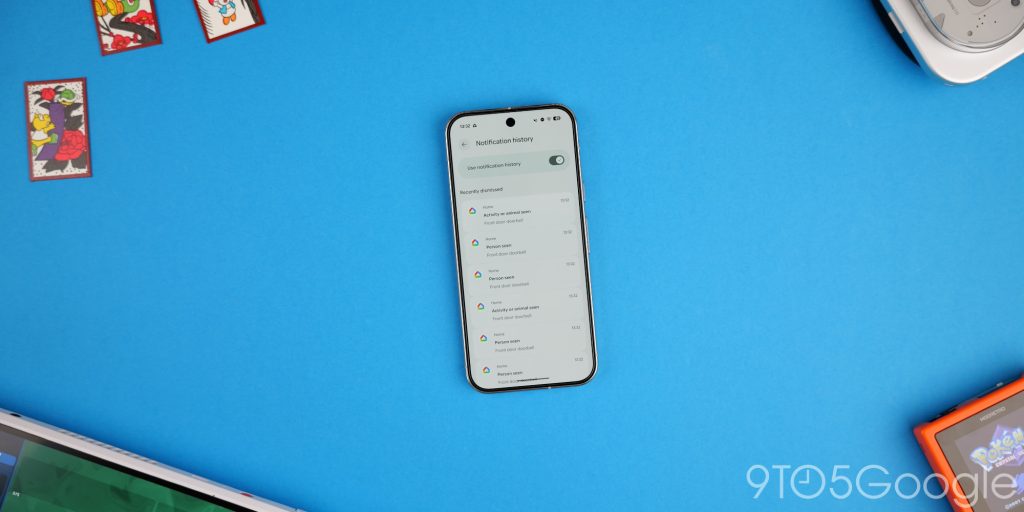
When we have so many apps vying for our attention, it’s nice to at least be able to see something you might have missed or skipped accidentally. You can’t go back and view missed notifications prior to this feature being enabled, so make sure you do it right away.
Find Hub
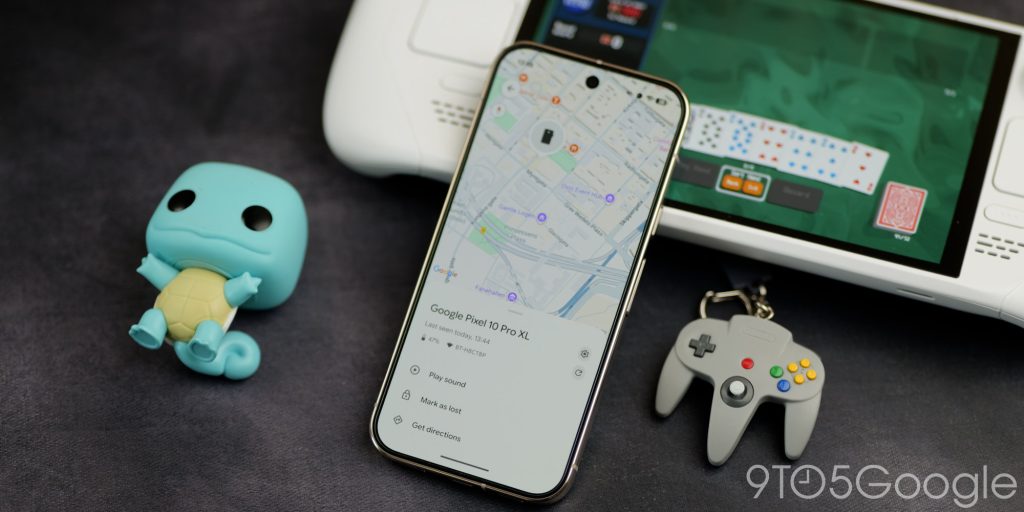
Google does not set up the Android version of Find My Device on your phone by default. No, you have to go in and manually set this up by signing in to your account and activating. Otherwise, if you misplace your phone, you might not be able to track it, ping it, or lock it remotely.
This app also lets you track other accessories like earbuds, headphones, and tracker tags. It’s super useful as you can do things like ping your phone if you misplace it. Just make sure that you do this as soon as you set up your phone. If you have set up your phone, do it now. You can’t do it later if you do lose your phone.
Theft Detection
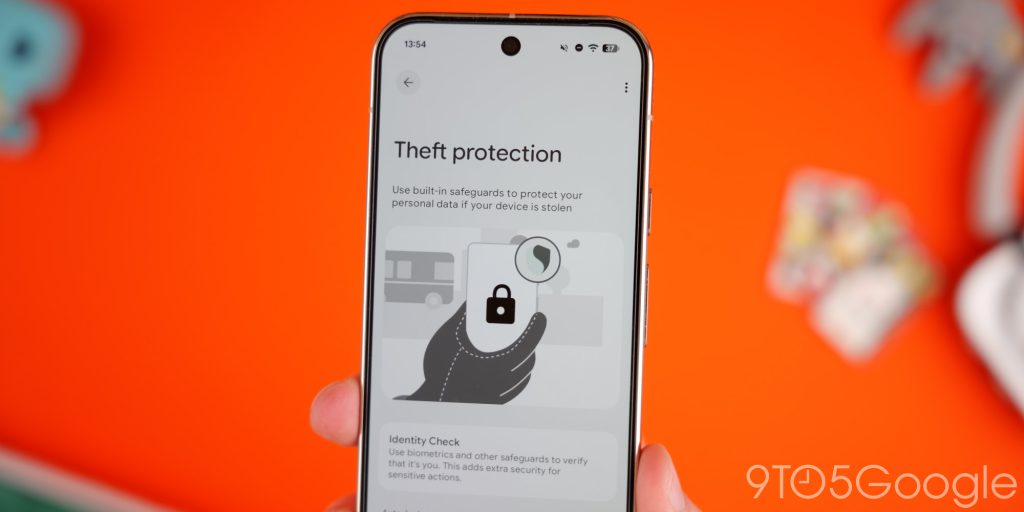
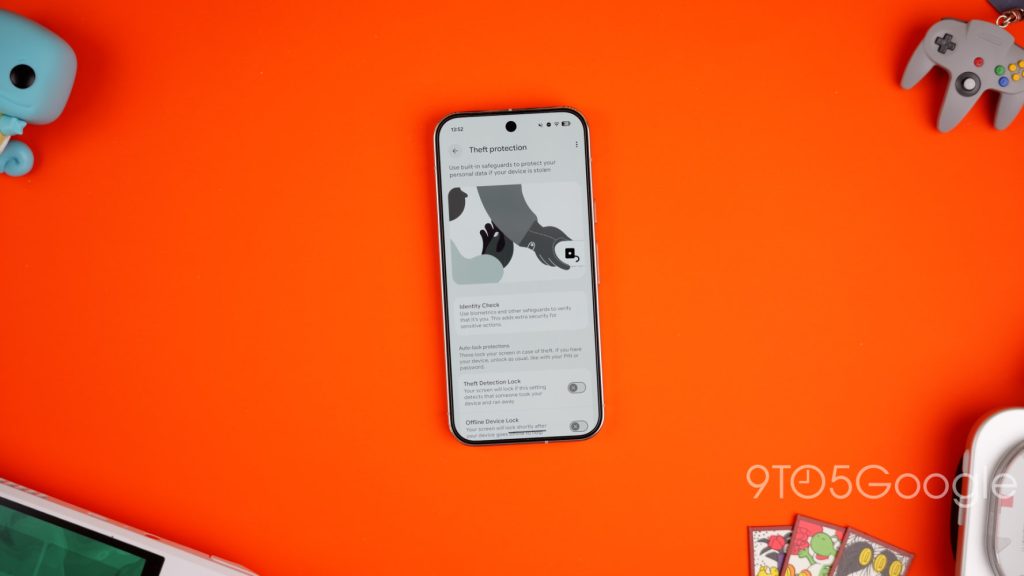
God forbid you ever lose your phone or break it, but having your phone stolen is not only traumatic, but it’s also stressful worrying about what sensitive data might be accessible to the would-be thieves. You should 100% enable Theft detection on your phone as soon as you’re able – preferably right after setting up.
The suite includes lots of little things that ensure people can’t snoop, even if they get access past your lockscreen. Offline Device lock being one of the best as it’ll lock your phone as soon as you lose connection to the internet or lose signal. Remote lock is another thing you should enable right away, too. In tandem with Find Hub, you can track your phone and wipe it if you are really concerned about your data.
Flip to Shh
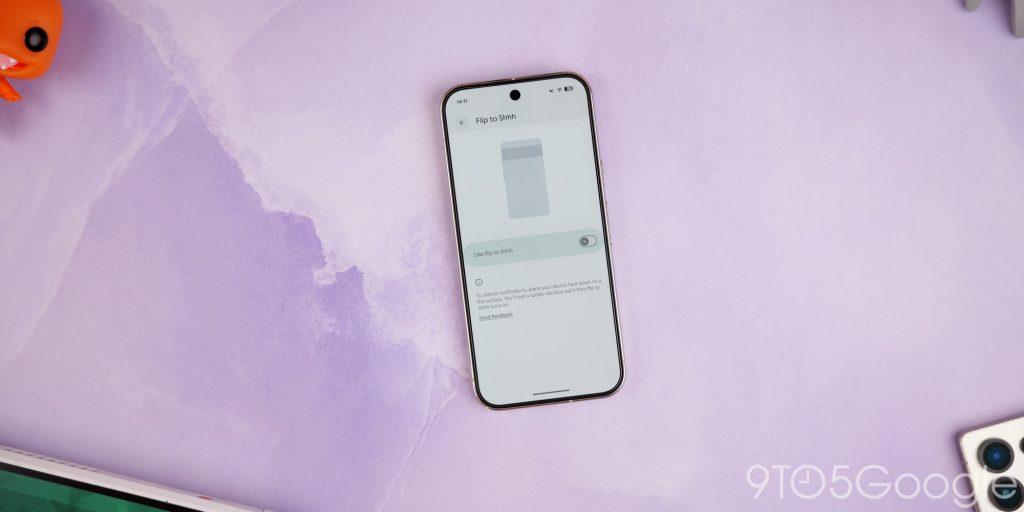
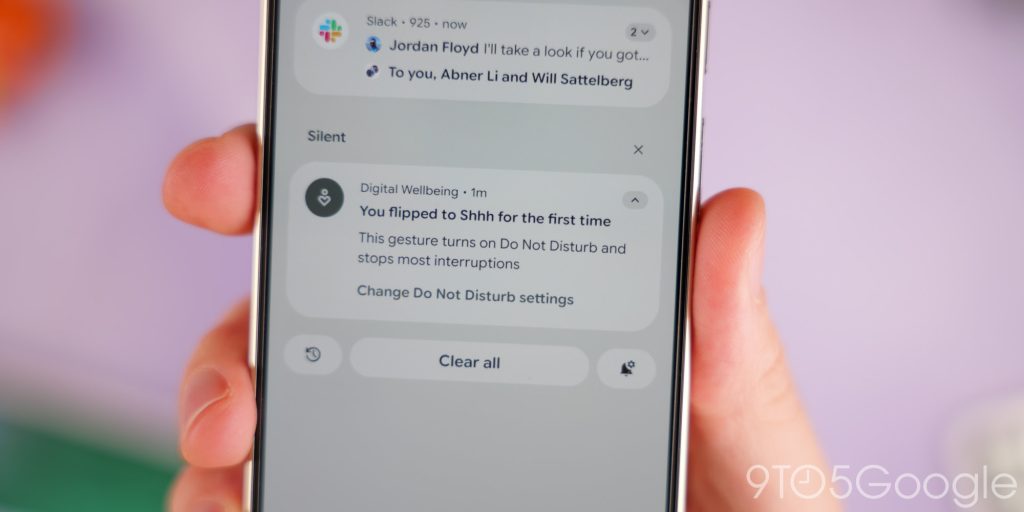
Flip to Shh is one of those underrated features you don’t realize you need until you don’t have access to it. When activated, your phone will turn on Do Not Disturb mode and fully silence all distractions. Even if you don’t use silent or vibrate mode, it works just the same. Quiet when face down, back to normal when face up. It’ll sync with your Pixel Watch too, so it’s hard not to recommend it to everyone.
Bedtime mode
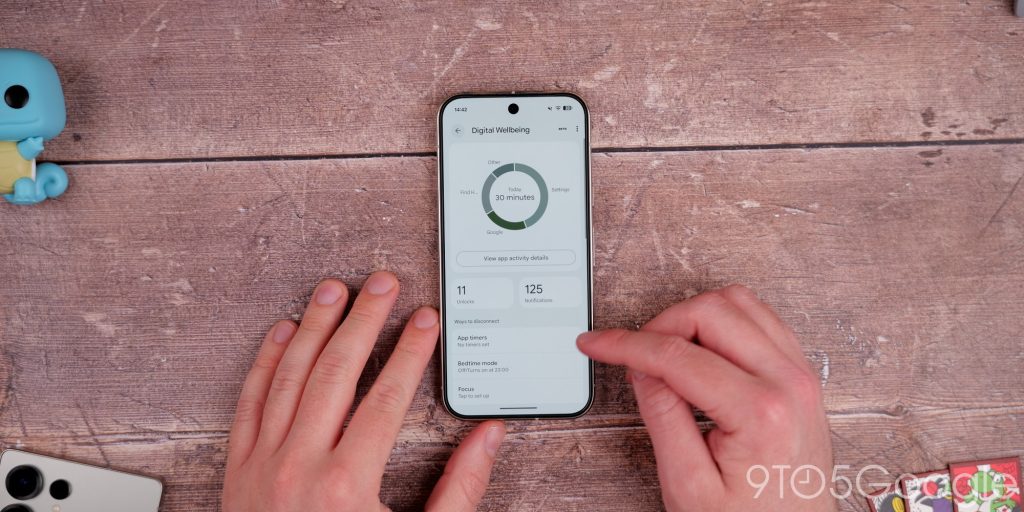

Is there anything worse than getting a loud notification ping when you’re trying to unwind or sleep? I’d wager no. This is why Bedtime mode is such a great option to have enabled on your phone. The good news here is that you can set a whitelist for notifications if you do need to be aware of specific pings. You have controls to darken the screen and set your phone display to grayscale, so you are less likely to sit up all night using it. Bedtime mode is a useful way to minimize distractions and is also great for winding down at the end of the day.
Simple View
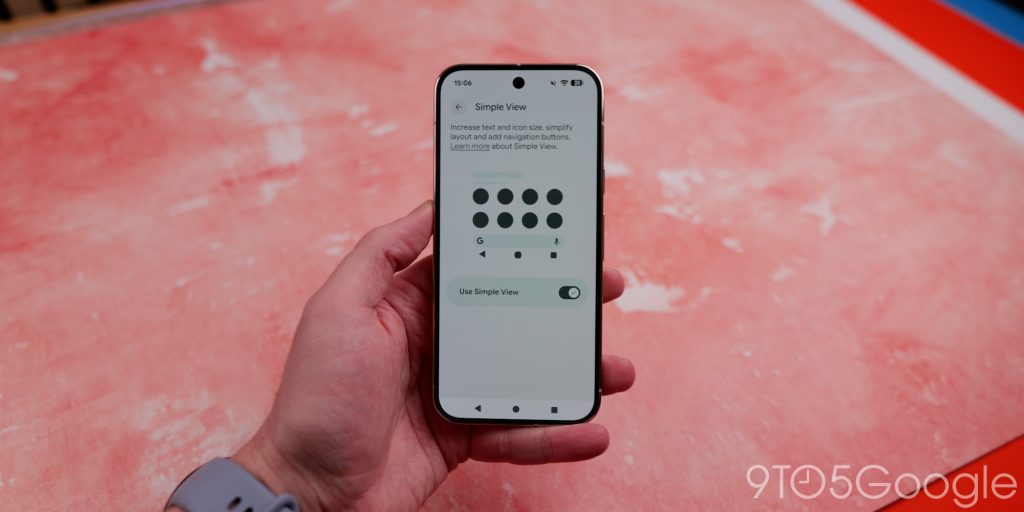
Almost all modern Android phones have a “basic” mode to help the less technically literate get around. On Pixels, it’s called “Simple View,” and it changes things to use on-screen navigation buttons, increases text and icon size so you can see everything more clearly.
For those with minor vision impairments, this is a good option. However, we think this might be great for the less tech-inclined people in your life who maybe struggle without the default settings on phones and still want most features to work as expected. Simple View merely helps with navigation and doesn’t inhibit the experience or hide it behind deep customization sections, as you can toggle it on or off easily.
Adaptive tone

The annoying thing is that not all Android phones have an “Adaptive tone” function, but it those that do don’t always have it active out of the box. On Pixel 10 Pro phones, it needs to be enabled. Adaptive tone adjusts the color tone of your screen to better fit your surroundings, to “fix” the white balance, and reduce eye strain. In isolation, this sounds crazy, but when enabled, you should have a better experience everywhere as your display is making alterations to ensure things look as good as they can.
Adaptive tone is separate from other eye comfort shield features. Those tend to adjust the display warmth throughout the day to help reduce blue light fatigue, but you can stack the functions if you want total eye care from your phone’s display.
Screen protector mode
You might not realize, but that screen protector you’ve thrown on might not be ideal for the touchscreen. We’d recommend enabling the screen protector mode. This ups the sensitivity of the touch surface under the screen protector so that lighter taps are needed. It mitigates the extra layer of plastic or glass, and depending on the thickness of the screen protector, can make a big difference to how your phone works.
It’s worth noting that this might help some phones with in-display fingerprint scanners. So if you’re having issues, then try enabling and that could provide a quick fix.
One-handed mode
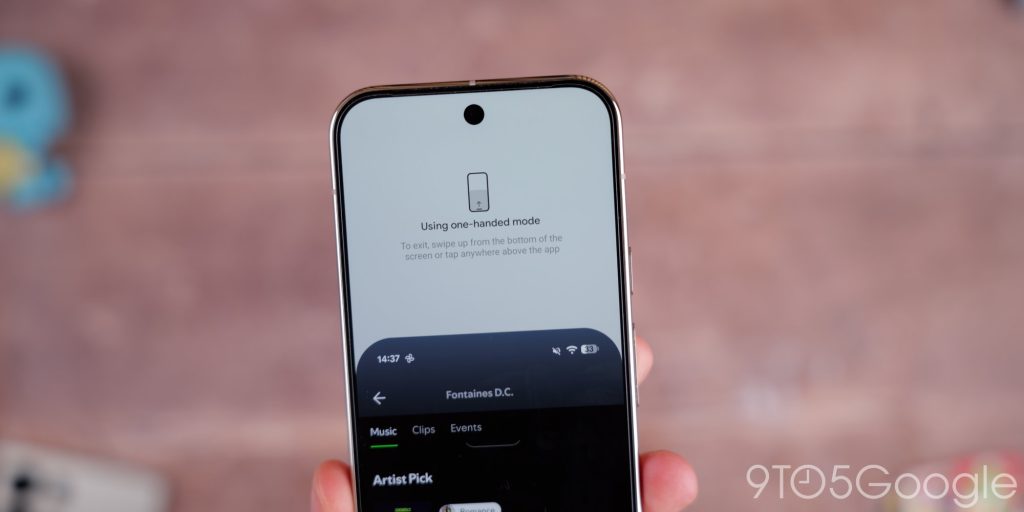
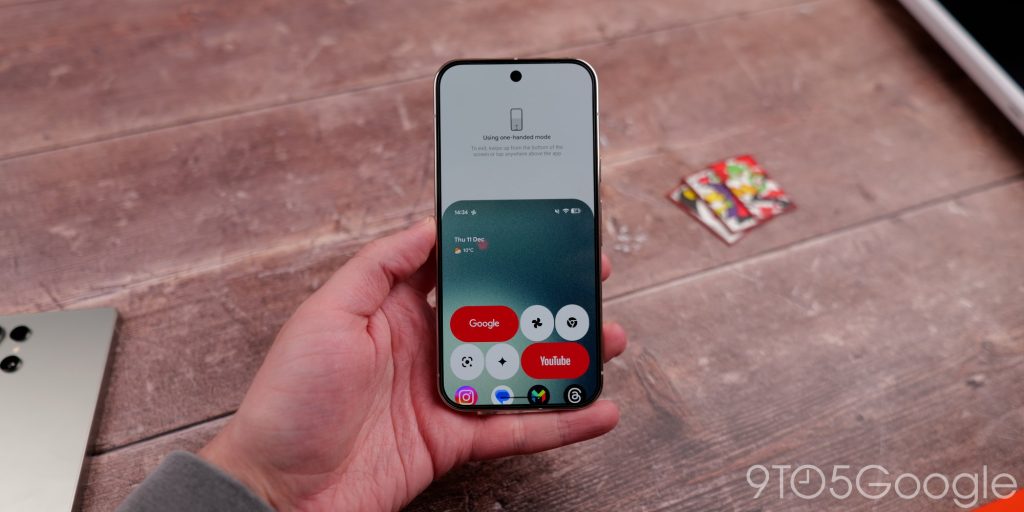
Phones aren’t getting any smaller, and to make matters worse, neither are some user interface sections. The solution is to scale up the UI, but if you prefer keeping things as intended, then the One-handed mode might be useful. On most phones, this works by swiping down on the gesture bar. Then, your entire display will shift down. This will allow you to use or reach areas that would ordinarily be closer to the status bar.
When you’re using your phone with one hand, it means you can reach places without contorting your digits. It’s something not everyone will use or need, but can be useful in a pinch so is 100% worth enabling.
Clipboard on Gboard
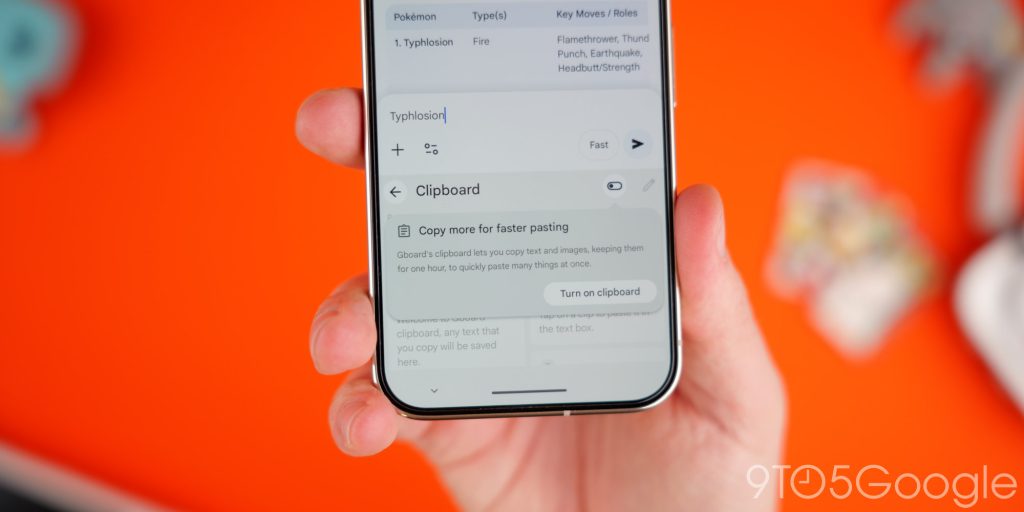
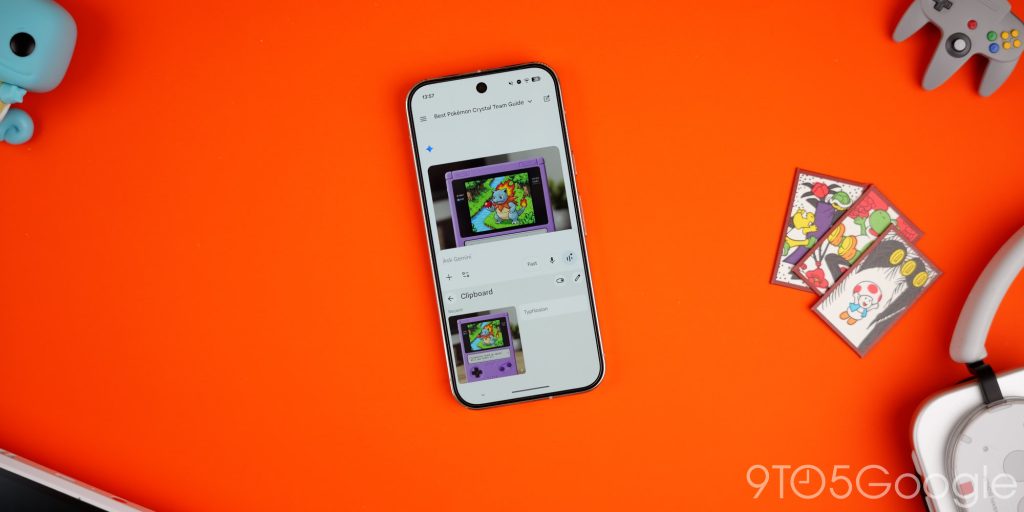
You might not use Gboard, but if you do, you’ll know it’s arguably the best keyboard on Android. It has some great features but one that still isn’t active by default is the clipboard for Gboard. This can save copied text and even images for quick reuse.
For security, it is disabled at password entry screens, and it is automatically cleared after around an hour so it doesn’t get clogged up or expose any sensitive information. You can pin things you’ve copied if you need to keep them available permanently. I find this super useful for things like emails, but proceed with caution there. To access, tap the four-square toggle, then the clipboard icon, enable it, and you get a brand new UI that’ll take you through steps to use it.


FTC: We use income earning auto affiliate links. More.


Comments