
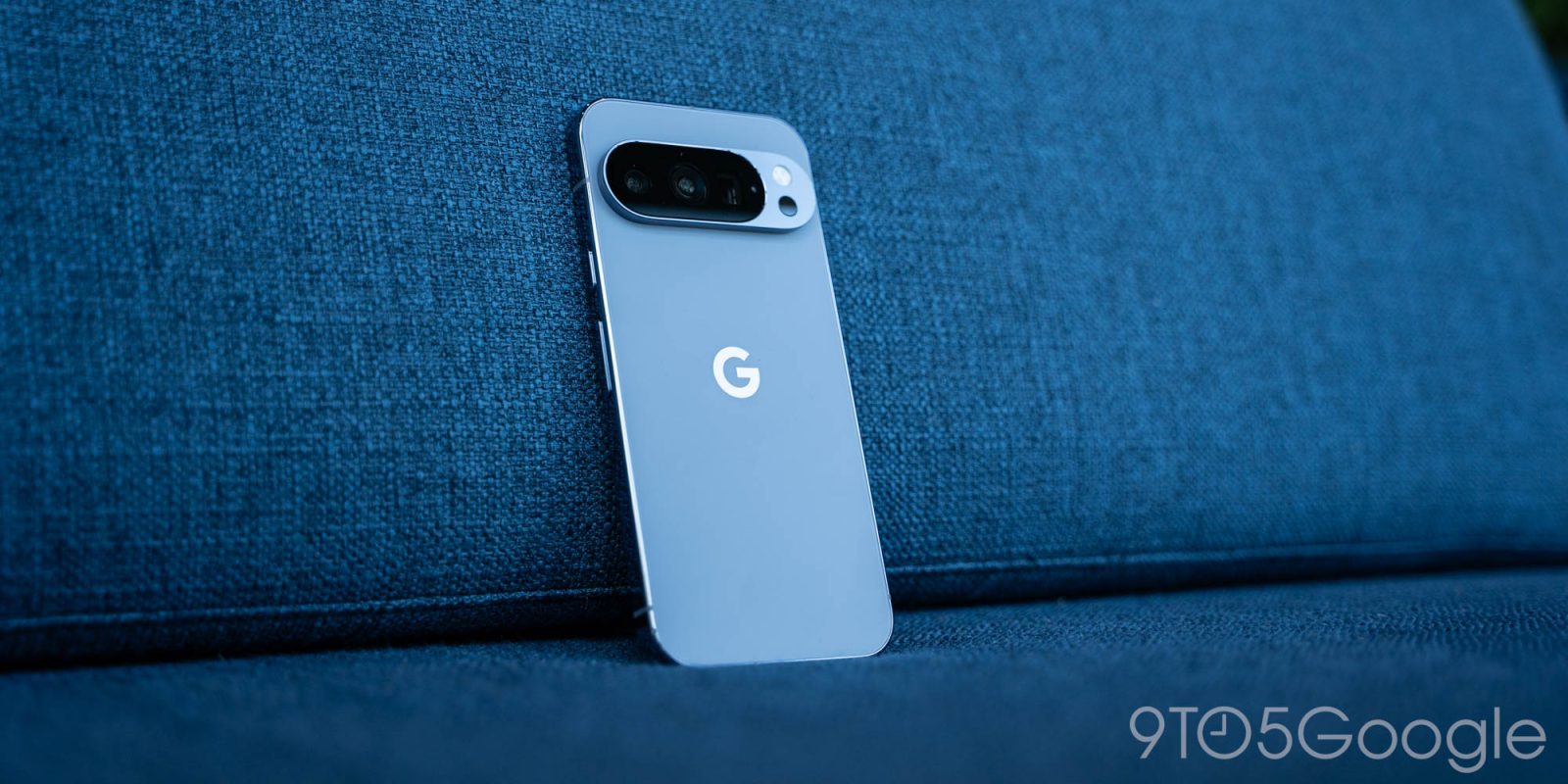
As Canada makes changes around Daylight Savings, Google is explaining how to deal wiith the time zone change on your Android phone.
When Daylight Saving Time comes to an end next month, parts of Canada will not be rolling back their clocks as the time change becomes permanent. Manitoba announced the change in September, with other parts of the country, including Alberta and British Columbia, also no longer changing their times twice a year, but different provinces and territories are making their own choices regarding which time to stick with.
Google, in a post, subtly acknowledges that things could get a little messy with these time zone changes and your Android phone.
Time is usually set automatically on Android, and it sounds like that will still happen for the most part. Google says to “apply any pending updates from your phone’s manufacturer and Google, and then restart your device” if your phone’s time is incorrect on November 1 after the changes kick in.
But if there are still problems, you can make adjustments in the Settings of your Android device:
If you are still seeing an incorrect time or time zone, you can enable location-based time zone detection:
- Open Settings.
- Search for Date and Time.
- Enable “Automatic time zone”.
- Enable “Use location for time zone”.
or set the time zone manually:
- Open Settings.
- Search for Date and Time.
- Disable “Automatic time zone”.
- Choose “Time Zone”.
- Choose “Region”.
- Choose “Canada”.
- Choose a time zone with the right offset.
More on Android:
- Older Pixel phones appear to be getting Google’s new 3D emoji
- Galaxy S27 might drop to 8GB of RAM; other Android phones could go back to 4GB
- What’s new in Android’s October 2026 Google System Updates
Follow Ben: Twitter/X, Threads, Bluesky, and Instagram


FTC: We use income earning auto affiliate links. More.


Comments