
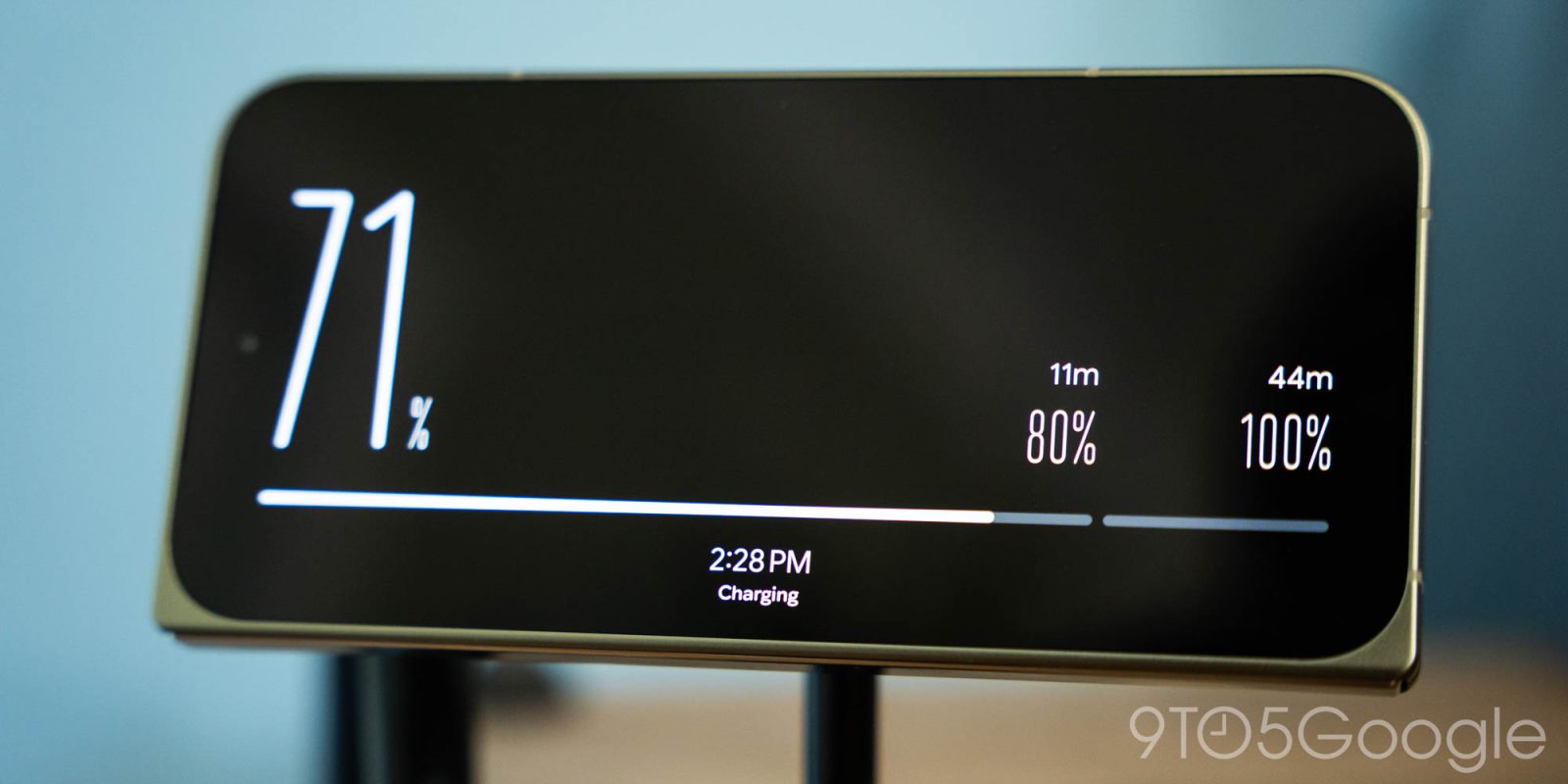
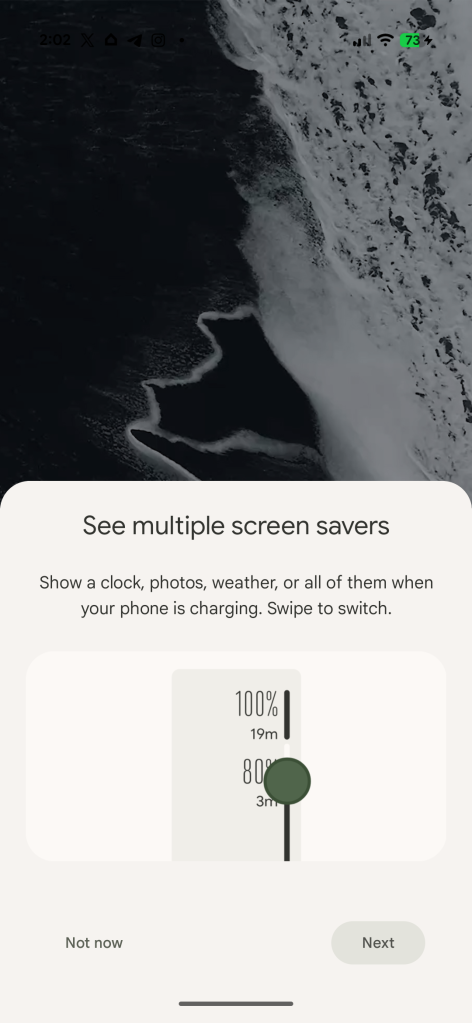
Google Pixel 11 phones ship with an update to screen savers, with support for a new style and the ability to select more than one option and switch through them – much like iPhones do.
Screen savers aren’t enabled by default on Pixel phones, but they are getting quite a bit more useful on the Pixel 11 series.
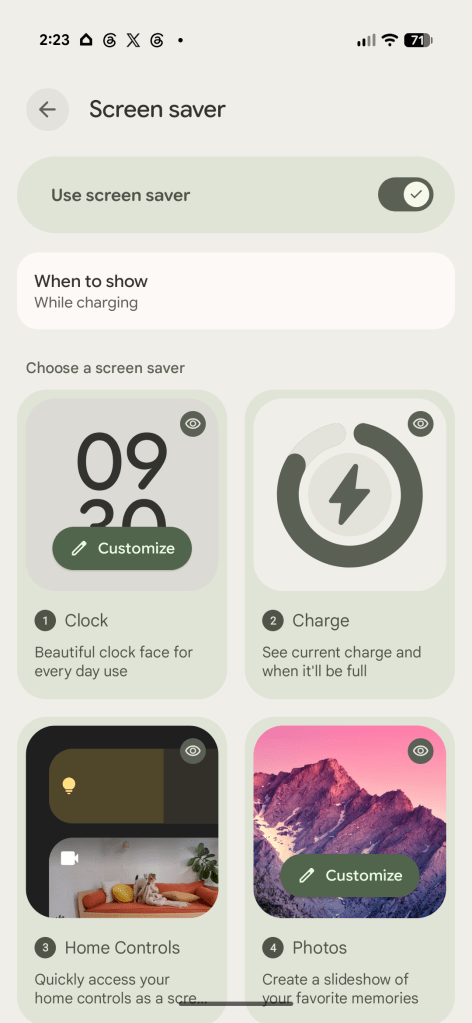
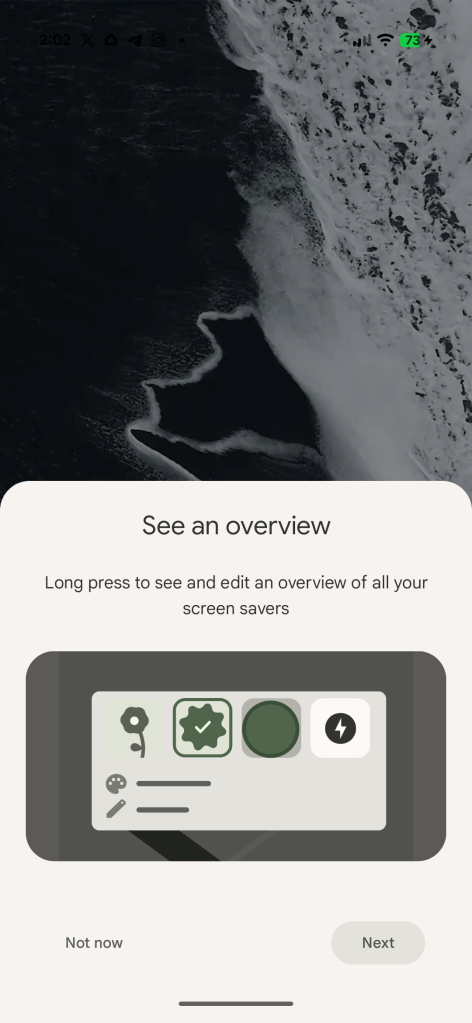
That starts with a new piece of functionality – you can now set more than one screen saver and switch between them. That’s something that Apple’s “StandBy” feature on iPhone also supports, though it works a bit differently on Pixel. Where it’s just a simple swipe on iPhone, Pixel’s version is tied to the back gesture. You need to swipe in from the edge of the display to move between screen savers – which is a little tricky on the Fold given the side-mounted fingerprint sensor.
Top comment by DiamondMaster115
Those look... beautiful.
It even uses M3 Expressive elements
Rare Google design W
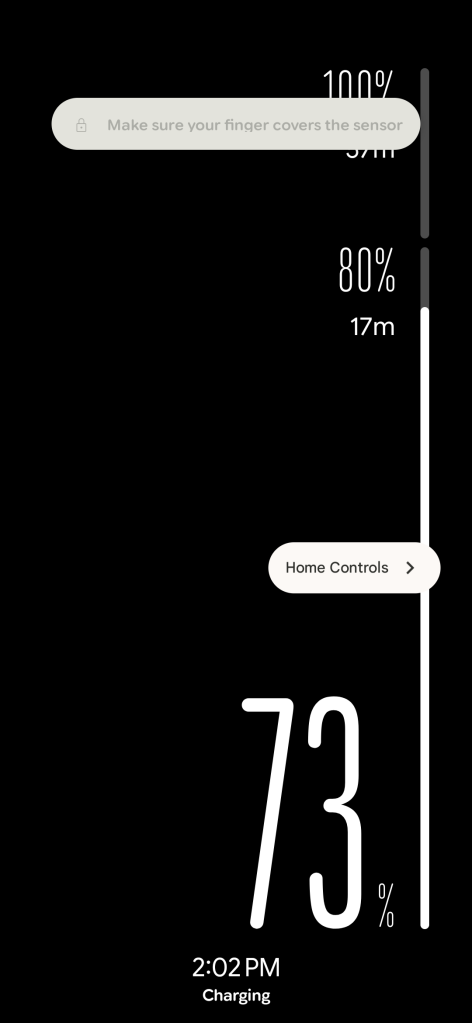
And you might have noticed something new in those screenshots, a new screen saver style. Google has added “Charge” to the lineup, a dedicated screen saver theme that shows the time at the bottom with your battery percentage taking up most of the display. The minimalist design also has a bar that includes stops at 80% and 100%, the former as that’s generally when fast charging tends to slow down. There are time estimates for both.
Google has also introduced updates to the “Clock” screen saver, with the digital and analog styles merging into one and now being much more customizable. You can pick from styles inspired by the lockscreen clocks introduced back in Android 14.
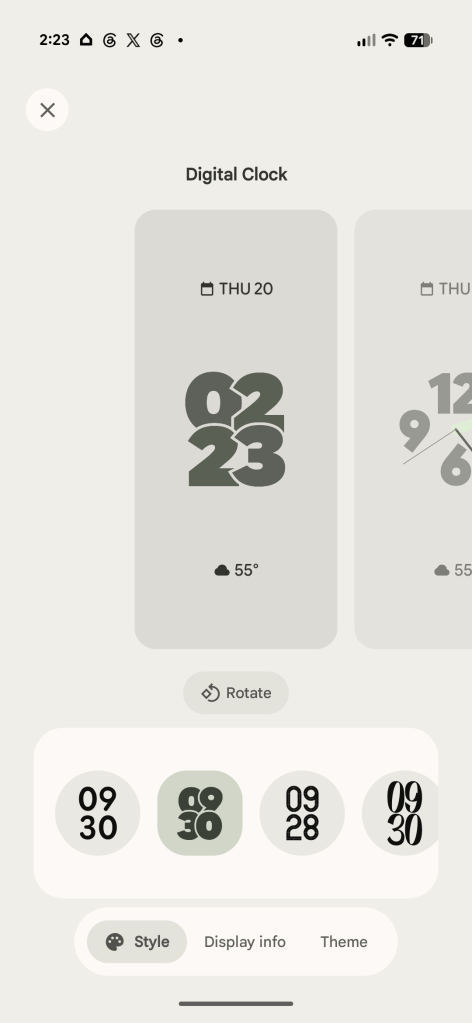
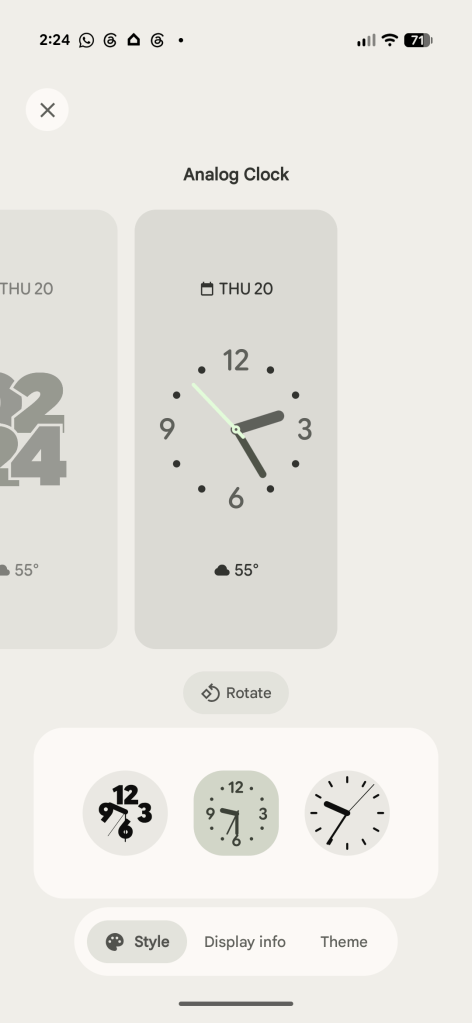
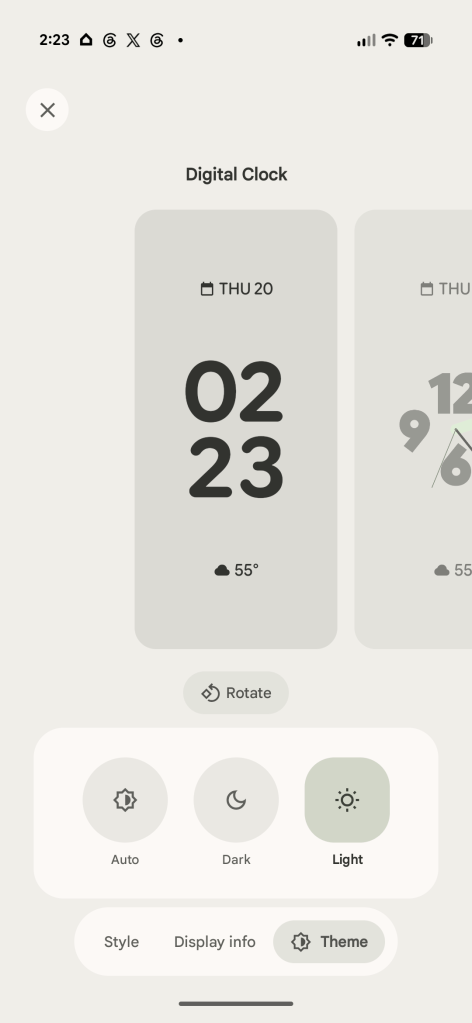
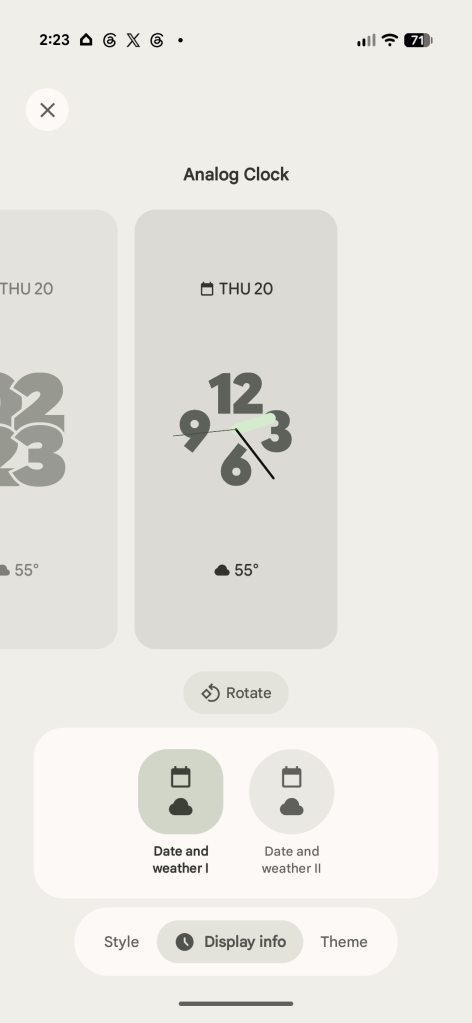
This is all available out of the box on Pixel 11 devices – which is why our screenshots are unwatermarked – and presumably will arrive on older Pixel models later on.
More on Google Pixel:
- Pixel 11’s Magic Capture perfectly solves a very modern parenting dilemma
- Google Pixel strategy is now ‘attack,’ 13 million phones in 2026, ending China production
- Google starts rolling out Tap to Share for Pixel 6 and newer
Follow Ben: Twitter/X, Threads, Bluesky, and Instagram


FTC: We use income earning auto affiliate links. More.


Comments